
Clover POS: Add customers, award points for purchases, and redeem rewards seamlessly within the register.
February 16, 2026
For Clover POS brands
This guide is specific to the Clover POS integration.
👾 This integration is currently in [CHECK: Closed Beta or Open Beta] in Australia 👾
If you'd like to join the beta, see How to contact Marsello support.
For Clover POS brands, your staff can give in-store customers loyalty points for every purchase from the Clover POS sales screen. Staff can also register new customers in-store and redeem customers' loyalty rewards or email discounts at checkout. Follow the steps below to add a customer to a sale so they earn points.
💡 Tip: Help your staff confidently promote your loyalty program and give customers a great experience with our Staff Training Guides.
Each guide can be found in the Marsello Admin and is automatically branded using your Brand guidelines, ensuring a consistent look and feel across your materials.
Before you get started
-
For Clover POS brands, make sure your POS sites are enabled on the Integrations page.
For Clover POS brands, add the customer to the sale in Clover POS so they earn loyalty points for their purchase.
-
Add the products the customer wants to buy to the sale.
-
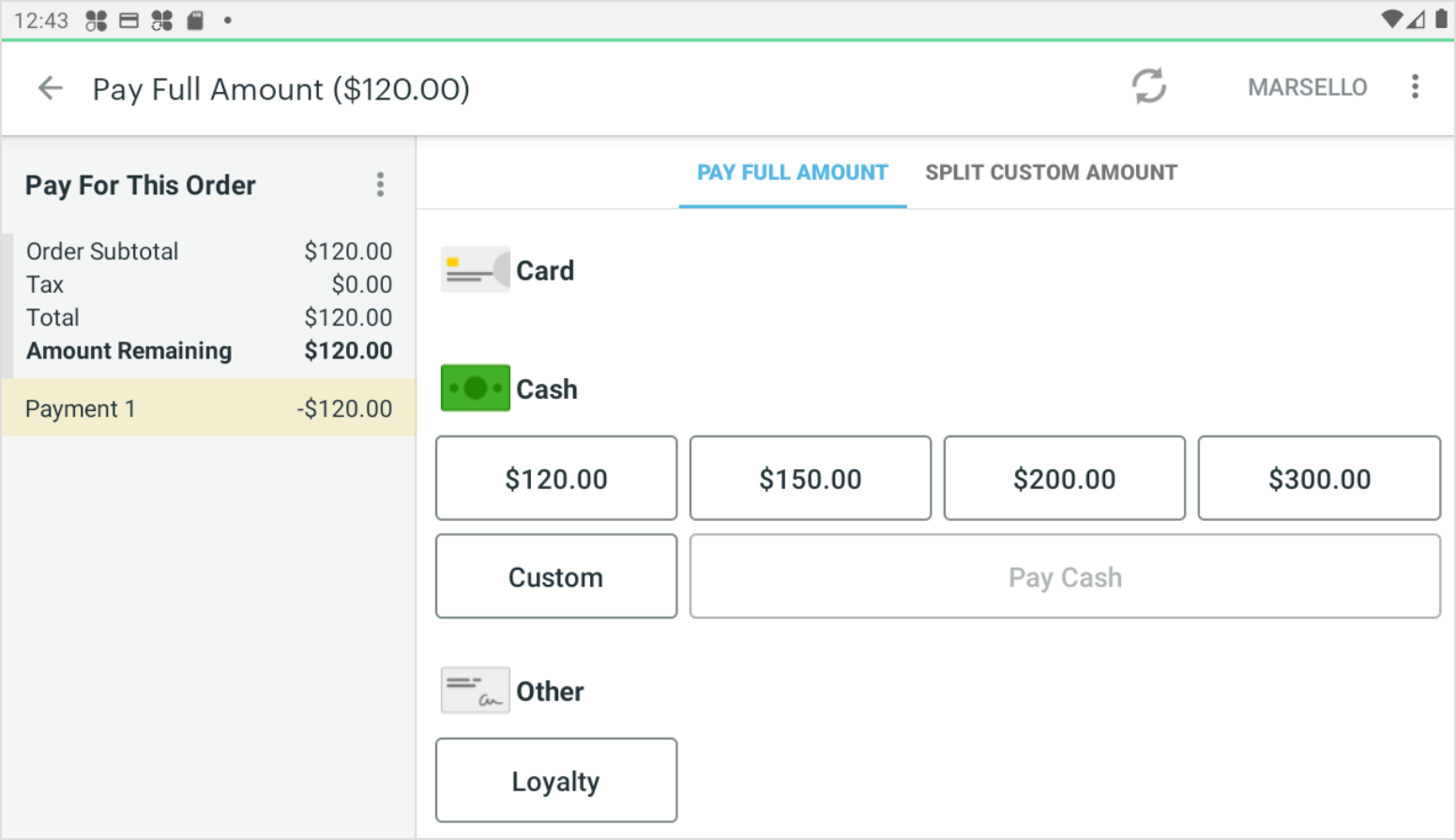
Click Pay. The Marsello Loyalty button shows on the Payment screen.
-
Select the Loyalty banner button.
-
Search for the customer in one of two ways:
-
Click Add Customer to search by Email.
-
Click Scan QR to scan the customer's Digital Membership Card. This will launch the built-in camera.
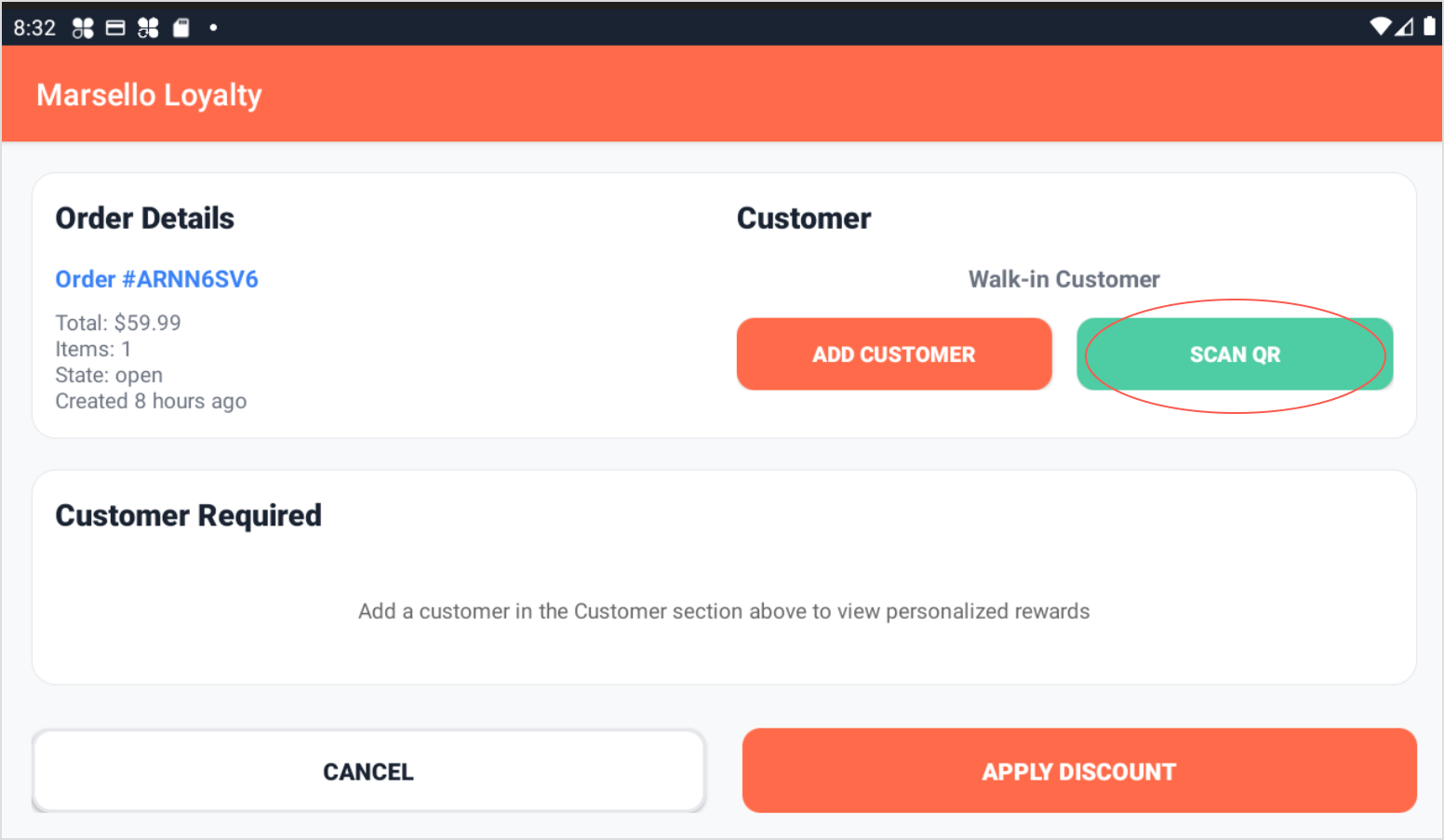
📝 Note: If the customer isn't in your database yet, tap + Add a new customer to create their customer profile. See [CHECK: title of the Clover POS add new customers article].
-
Select the Customer's Name. This will launch the customer's loyalty profile and attach the customer to the sale.
-
Return to the sale.
-
If the customer has a reward they wish to redeem, select the reward and click Apply Discount.
-
If the customer does not wish to use a reward, click Cancel.
-
Complete the sale.
When the Clover POS sale is complete, the customer automatically receives their loyalty points.