
Why do my email campaigns look different in Outlook than in Marsello?
Find and fix the most common reasons email campaigns look different in Outlook than in Marsello.
September 19, 2025
🏷️ Email marketing campaigns and automations are unlocked with the Marketing add-on.
If your Marsello email campaigns look different in Outlook than they did in Marsello, for example images not loading, animated GIFs not working or extra white space, this guide explains why and how to work around the most common issues.
Before you get started
- Have the email campaign open in Marsello, and send a test email to an Outlook inbox so you can compare the two.
- Note which version of Outlook you are using, as the differences depend on the version.
- Check App Status to rule out an outage first.
What causes Outlook to display emails differently?
Marsello emails created with the drag-and-drop editor are designed to be consistent and responsive across most email providers. However, Outlook users may see their emails come through somewhat differently from what's been saved in Marsello.
Outlook 2007 onwards uses Microsoft Word to render the HTML and CSS of emails. This approach to rendering differs significantly from other popular email providers as it's better suited for print design. This is why an email may look slightly off when opened in Outlook compared to what you initially designed and previewed in Marsello or test send to other email providers

What are the common limitations in Outlook?
Notable design differences depend on the version of Outlook you are using. However, most differences stem from these common Outlook limitations:
-
No support for background images in divs and table cells
-
No support for CSS float or position
-
No support for text-shadow
-
Limited support for padding and margin
-
Limited support for CSS width and height
-
Issues rendering nested elements and background colors
With these limitations in mind, you can work around some of the most noticeable design issues listed below. However, you should not expect that your email will look uniform across all email clients.

What are the common differences in Outlook and how do I fix them?
Is Outlook ignoring the padding or margin around images in your email?
Outlook ignores set padding and margins around images. As a result, any wrapped text will be pushed against the image. There are a couple of ways around this:
-
Use a photo-editing tool to add a border around your image that is the same color as your email background, then upload the image into your email. Because the padding is part of the image, Outlook cannot ignore it.
-
Incorporate the image into your email via an HTML block and add vertical space (vspace) and horizontal space (hspace) to the image's tag. For example:
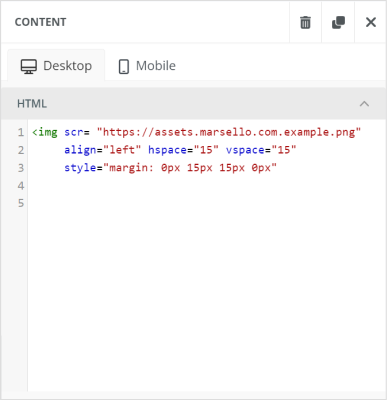
You'll still want to set margins for the image because some email clients do not recognize "vspace" and "hspace" for styling purposes.
Is an animated GIF in your email not working in Outlook?
Outlook does not support animated GIFs. Instead, it will display the first frame of the GIF in the email that the recipient sees. Please make sure the most important information appears in the first frame.
Is Outlook blocking the images in your email from loading?
When images in your email don't load in Outlook, it's typically due to the recipient's personal or business settings. Outlook is often configured to block automatic picture downloads for security purposes. The recipient needs to change this Outlook setting on their end for the images in your email to render properly.
Are images in your email being clipped or rescaled in Outlook?
Some versions of Outlook have a maximum image height restriction of 1728 pixels. To prevent Outlook from automatically clipping the top or bottom of your image, make sure that the image you upload to your email has a height of under 1728 pixels.
If you cannot decrease your image's size and need its entire contents, the best alternative is to crop the image into sections and place them into multiple Image blocks in your email.
Are images in your email showing at the wrong size in Outlook?
Outlook doesn't recognize the HTML that constrains images. If you use HTML to resize an image uploaded to an email, it may display at the original size when opened in Outlook. Try to resize your images to the desired width and height before you upload them to Marsello.
Is a background image in your email not loading?
Background images not loading isn't unique to Outlook, and there isn't a quick fix to force the background image in an email template to display. Always make sure to set a background color as a backup.
Is there extra white space above an image in your email in Outlook?
White space is sometimes inserted above an image because Outlook renders HTML using Microsoft Word. This rendering technique is similar to the preview you see when printing content in that it is broken into a series of unique pages. If an image falls between what Outlook sees as two separate pages, extra space is inserted above the image to force it down to the next page.
Removing the extra white space in Outlook requires reorganizing your email content. Because reorganizing can require extensive layout and content changes, consider making a copy of the email first.
To create a copy of your campaign in Marsello:
- Go to the applicable email dashboard.
- Find the email.
- Select Clone from the drop-down menu.

When reorganizing your content, you want to determine where Outlook is marking the page break in your content. If there is an image beneath the white space, try to move the image to another area in your layout and send a test email to see if this fixes the issue. Continue reorganizing and testing your email until the unwanted white space is eliminated.
Still not working?
If your email still looks different in Outlook after you have tried the fixes in this guide, contact Marsello support. When you contact us, include:
- The name of the email campaign.
- The version of Outlook you are using.
- A screenshot of the email in Outlook.
How to contact Marsello support