-1.svg)
Adjust customer points balance in Marsello. Add or remove loyalty points for one customer or in bulk from the dashboard.
🏷️ Available on all Marsello pricing plans.
You can manage customer loyalty points in Marsello by manually adjusting an individual customer’s points balance or by importing points in bulk using a CSV file.
This guide explains how to:
- Adjust a single customer’s points balance
- Format a CSV file for a points import
- Import customer points into Marsello
How can I adjust an individual customer's points balance?
Merchants can manually add or remove loyalty points from a customer's balance. This is useful if you want to reward a customer for actions such as leaving a review, providing feedback, or to resolve a service issue.
📝 Note: Points adjustments cannot be made through the Point of Sale (POS). All adjustments must be made in the Marsello dashboard.
1. In your Marsello Admin, go to Customers and search for the customer by name or email address
2. Select the customer by clicking on their Name
3. This will open the customer profile. From the drop-down button under Customer actions, click Adjust points balance
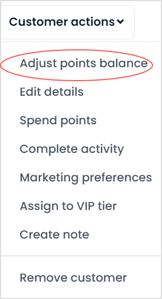
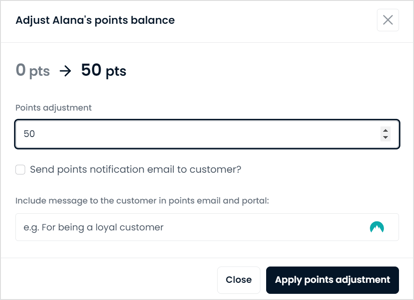
4. Enter the number of points you would like to add or remove from the customer's points balance.
- To increase the customer's points, enter the number of points you would like to add to their balance e.g. 12
- To decrease the customer's points, enter a minus sign before the number of points you would like to remove from their balance, e.g. -12. Be careful when subtracting points as this may sometimes result in a negative balance.
5. Choose to send the customer a Points Earned Email (Optional).
If you would like to notify the customer of their updated points balance:
- Select the tick-box next to Send points notification email to customer?
- Add a short message in the text box to notify customer why their points balance was updated.
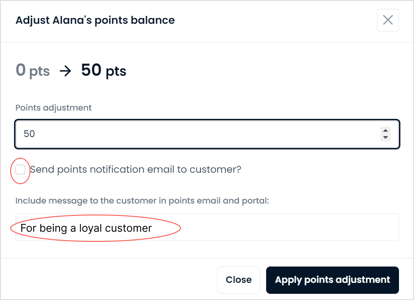
6. Click Apply points adjustment to confirm the points adjustment.
The customer's points balance will automatically be updated. The manual points adjustment will display as a new line on the customer's activity feed.
📝Note: If you choose to send a Points Earned Email, the customer will be notified of their new points balance.
How should I format my customer list CSV file when preparing for a points import?
Follow these steps to correctly format your CSV file so your data imports smoothly into Marsello.
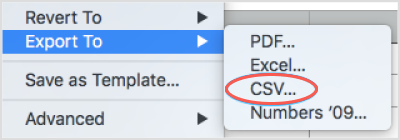
1. Export your customer database from your previous loyalty program and save it as a .CSV file.
2. Open the .CSV file in a spreadsheet program (e.g., Excel, Google Sheets).
⚠️ Important: Your file must be formatted as outlined below to ensure a successful import into Marsello.
Keep only the following columns and remove all others.
- First Name (required)
- *Last Name
- Email Address (required)
- Points Balance (required — enter
0if not applicable). If you are converting your customers points balances to a new rate add those new points balances here. - Mobile
|
Column Name |
Required? |
Notes |
|
First Name |
Yes |
If missing, use a placeholder like |
|
Last Name |
No |
Optional. |
|
Email Address |
Yes |
Must be valid (no duplicates, correct format). |
|
Points Balance |
Yes |
Enter |
|
Mobile |
No |
Include country code. Leave blank if not available. |
Your final template should look like this: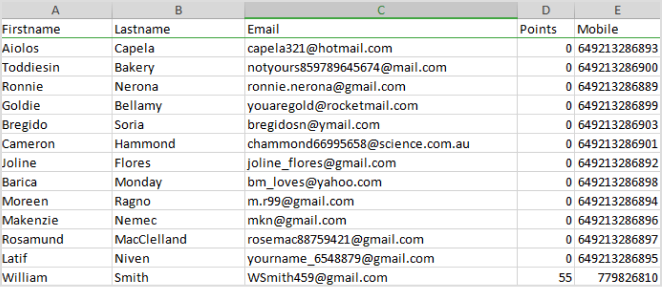
3. Save your file as a .CSV file
4. Check your Points column amounts for accuracy.
💡 Tip: Steps to Update Balances in Your Spreadsheet
Open your customer loyalty spreadsheet.
- Add a new column to the right of the existing Points column. Name it Points (New).
- Enter a formula to apply your conversion multiplier:
D2= the cell containing the original balance10= the multiplier (based on your conversion rule)
=D2*10
- Copy the formula down the entire column to apply it to all customers.
- Replace the old balances:
- Copy the Points (New) column
- Paste values only into the original Points column
- Delete the Points (New) column so only the updated Points column remains.
- Save and export your updated file as a .CSV.
⚠️ Important: Double-check your conversion multiplier before applying it to all customers. Using the wrong value could result in customers receiving too many or too few points in Marsello.
5. Save and export your .csv.
How do I run my loyalty points import of my customer database into Marsello?
Once your CSV file is formatted correctly, you can import your customers’ points balances. If you are migrating from another loyalty system, Marsello allows you to replace the existing points balances with those from the previous system. This ensures a seamless transition for your customers.
1. In Marsello, go to Customers > All Customers
2. Click the arrow next to Manage customer list, and in the drop-down select Update existing customers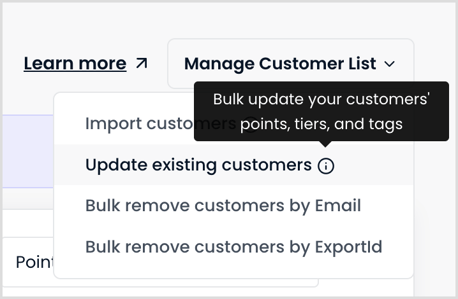
3. A pop-up will appear that requires you to select the identifier that you have for each customer and select the unique identifier that you're using to update the tag: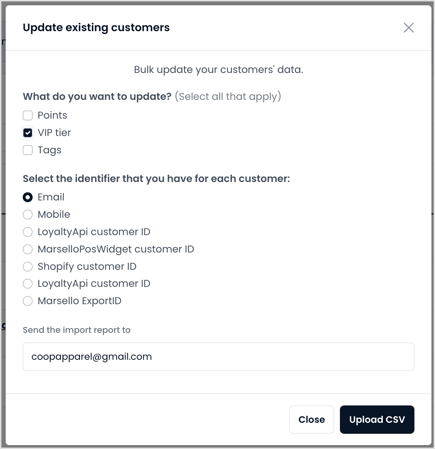
4. Select how you want the points to be added:
- Add imported points to customers' points balance
- If you have your points column set as 0, no points will be added.
- Replace customers' current points balances with the imported points balance
- If you have your points column set as 0, all customers will have their points reset to 0. This flexibility allows you to tailor the update process to your specific needs. For example, if you are migrating from another loyalty system, you can replace the existing points in Marsello with the balances from the previous system by preparing a CSV file containing each customer’s email address and the replacement points balance.
💡Optional Step:
- Add a custom tag: Helps you create a segment from these customers later (useful when importing from another platform).

Marsello always automatically includes a tag to all imports with the date and time of the import unless you change the text in the box.
- Give account creation points: Tick the checkbox if applicable.
.png?width=580&height=142&name=customer-import-step-02-initial-modal-01%201%20(2).png)
3. Upload Your CSV
⚠️ Important: By importing customers, you confirm that all newly added customers accept marketing. Remove any who don’t from your CSV before uploading.
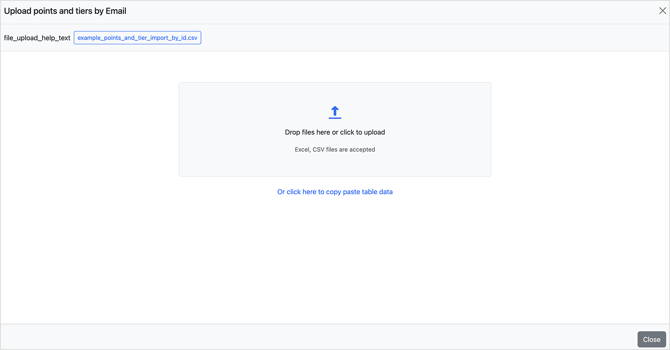
4. Choose Upload Method
- Drag and drop your formatted
.CSVfile. - Or click the file box to browse and upload.
- Or copy/paste data directly from your CSV into the upload table.


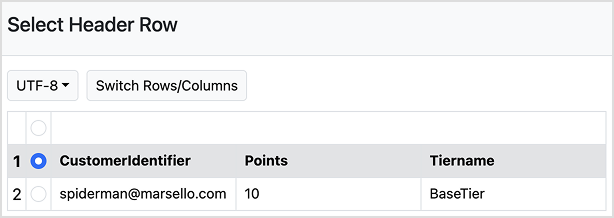
5. Confirm the Header Row
- Ensure the first row contains your column headers (e.g.,
Firstname,Lastname,Email,Points). - Select the header row and click Next.

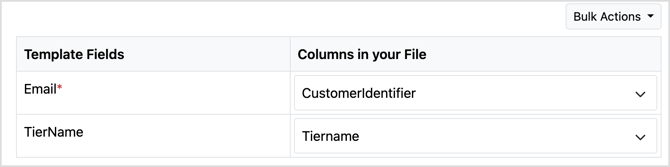
6. Map Your Columns
- Match each CSV column to the correct Marsello field.
- Use the dropdown menus to adjust mappings if needed.
- Click Next.
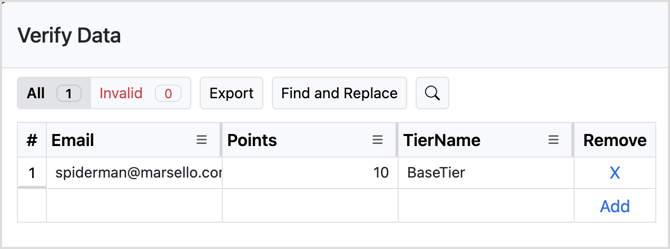
7. Verify Data
- Check that all details are in the correct fields (e.g., first names in First Name, valid emails in Email).
- Fix any errors in-app.
- Use Show invalid rows to quickly find issues.
⚠️ Important: Common invalid row causes
- Blank rows.
- First name doesn’t start with a letter or contains symbols (#$^&).
- Invalid email format.
- Mobile number not starting with
+or digits (e.g.,+6127123123or027123123). - File contains more than 100,000 customers (maximum limit).
- Remove unwanted entries by clicking the X in the Remove column.
8. Submit Import
- Click Submit.
.png?width=625&height=523&name=Screenshot%202026-10-12%20at%203.00.08%20PM%20(1).png)
The update runs in the background and may take up to 24 hours, depending on the size of your file. When it’s finished, you’ll receive an import report by email listing any rows that failed and why.
A row fails if it doesn’t match an existing customer, or if it matches more than one customer.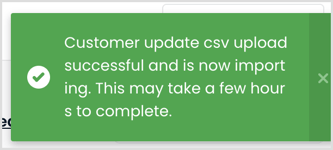
⏳ Imports may take up to 24 hours, depending on file size.