
Show appreciation for your customers' loyalty by letting them redeem points for a free item. On the Loyalty Accelerate plan, you can create a free product reward that gives customers a specific item at a zero-dollar cost when the item is added to their order.
🏷️ Free product rewards are unlocked on the Loyalty Accelerate plan.
If you're unsure about your current plan or its features, check your subscription details in the Marsello dashboard. If you still need help, see How to contact Marsello support. To help our support team solve the issue faster, include the error message you see, a screenshot of the message and one or two example customers who are affected (their email addresses), plus your store name and an order number, where these apply.
Before you get started
Here are some key details to note when creating a free product reward:
✨ Free Product Reward - A free product reward will provide the customer with a specific item at a zero-dollar cost when the item is added to their order.
-
A free product reward is recommended for online use only.
-
If you choose to offer it in-store, strict staff training will be required.
-
Staff must separate the free product from other purchased items and process it as a separate transaction.
-
To redeem the reward, staff should first add the item to the sale and then apply the reward
-
-
-
When setting up a free product reward, you may not add a minimum spend requirement.
-
In your Marsello admin, go to Points program > Redeeming and click Add Reward.

-
This will open a popup form where you can add the details of your reward. Please complete the following:
-
Select the Reward Type: click Free Product (online only) in the drop-down
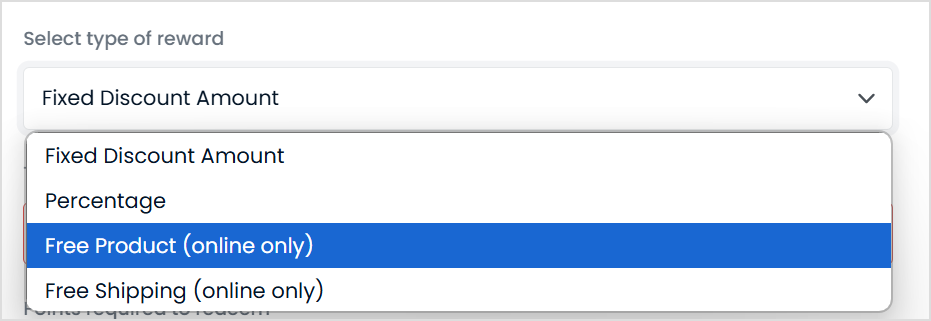
⚠️ Important: Do not select % off to create a 100% off discount, as this will mean that if the customer adds the item to the cart multiple times, they will get them all for free.
-
Reward Title: Give your reward a title that lets your customers know which product is free and gets them excited to redeem it

-
Points cost: set the number of points a customer needs to spend to redeem your reward

-
Discount amount: enter the product's retail price
Discount amount: enter the product's retail price

-
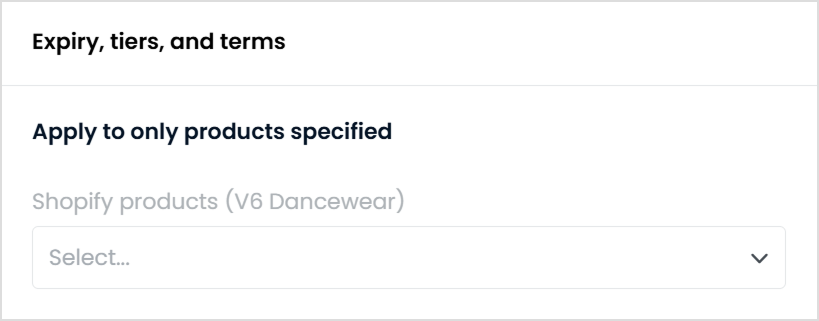
Go to Advanced Options > Expiry, tiers and terms and select the product or products for this free product reward.
📝 Note:
-
If the product dropdown menu doesn't populate automatically, try typing the product name into the product field. This should trigger the dropdown to appear.
-
If you wish for the free product reward to apply to all items in store, skip this step.
-
In Advanced Options > Expiry, tiers and terms, under terms, enter any terms you want customers to follow when they use this free product reward.

💡 Tip: Add a short instruction to your free product reward terms, such as "Please add the item to your cart before checkout." For more ideas, see these examples of terms to include with your loyalty rewards.
-
Click Create.
Your new free product reward now shows on the Rewards page of your loyalty widget and is ready for customers to redeem.
📝 Note: When the free product runs out of stock, remember to update the free product reward. The free product must be added to the cart so that when the discount code is applied, the product cost is subtracted from the customer's total.
Tips for success
-
Get creative with your reward titles. Add variety and personality to your reward titles to create customer interest in redeeming rewards.
-
Create three or more rewards to encourage customers to earn more and more points to spend. A rewards ladder gives your customers more flexibility to choose rewards they would like to earn points towards and encourages them to spend more to achieve higher point-cost rewards.
-
In-store – Make sure your staff know what your loyalty rewards are so they can inform customers at checkout. This will encourage your existing customers to be active with the loyalty program, and new customers to join.
-
Find out what rewards your customers like - try creating rewards with different discount types and amounts and measure their success.
-
It’s important to be sure you also include the relevant terms and conditions for rewards. Whether it's to encourage fair use or to protect your store, outlining exactly how and when your rewards can be redeemed ensures that your rewards are used as you intend them to be used.
FAQs
Q. Can I create a free product reward that is available in-store only?
A. No. You can't currently set up a site-specific free product reward, so a free product reward can't be made available in-store only. Free product rewards are recommended for online use only. If this is something you'd like to see added, feel free to vote for this feature. Your feedback goes directly to our product team and helps us prioritize what's most important to you! If you still need help, see How to contact Marsello support. To help our support team solve the issue faster, include the error message you see, a screenshot of the message and one or two example customers who are affected (their email addresses), plus your store name and an order number, where these apply.