
Add terms to your rewards to ensure your customers know what to expect and you have control over how the reward is redeemed.
September 15, 2025
Loyalty reward terms (also called terms and conditions) are an important part of any reward program. Terms help your customers know what to expect from a reward they redeem and give you control over exactly what you offer. Include relevant terms on every loyalty reward you create.
What terms should I add to a loyalty reward?
Online only
If you have a physical store and want a loyalty reward to be used online only, include an Online only term. If you don't, customers will expect to use the reward in-store. The Online only term is especially important for the advanced reward types (product or collection specific rewards and spend threshold rewards).
In-store only
If you run your loyalty program in-store, an In-store only term can encourage customers to shop in-store. However, if you have an eCommerce store, all rewards are still redeemable online. The In-store only term is simply a handy way to guide customers in-store.
Not to be used in conjunction with any other offer
By default, customers can usually only use one discount code at checkout. For Shopify eCommerce stores, discount stacking may be possible when enabled in both Marsello and Shopify.
Please add a [free product name] to your cart before applying the coupon code
🏷️ Free product rewards are unlocked on the Loyalty Accelerate plan.
Use this term with free product rewards or discount on a specific product rewards, where a product must be added to the cart before it's discounted.
Valid on orders over $X
🏷️ Spend threshold rewards are unlocked on the Loyalty Accelerate plan.
A Valid on orders over $X term can be handy to include in spend threshold rewards. Also include the spend amount in your reward title, for example $20 off orders over $100.
Limited-time offer
🏷️ Rewards expiry is unlocked on the Loyalty Accelerate plan.
Incentivize customers to redeem rewards soon by creating urgency with a limited-time offer.
Offer must be used within 1 year of redeeming
🏷️ Default rewards expiry is available on all Marsello pricing plans.
Use this term to let customers know the loyalty reward expires. This encourages them to use the reward soon and stops them from being disappointed when it expires.
Offer only applies to items in the [product category]
🏷️ Product-specific rewards are unlocked on the Loyalty Accelerate plan.
When reward discounts only apply to a specific product collection, reiterate this in the terms to minimize confusion when customers redeem it.

How do I add terms when I create a loyalty reward?
📝 Note: If you haven't already created a reward, check out Types of loyalty rewards you can create
In your Marsello admin, go to Loyalty > Points program > Redeeming.
Click Add Reward.
In the popup that appears, select the type of reward you want to create.
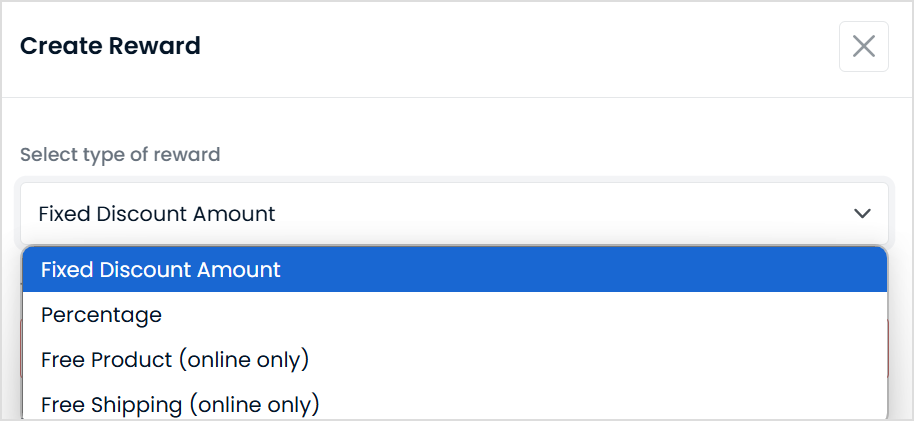
Follow the prompts to complete the reward setup.
Under the Advanced options menu, go to Expiry, tiers and terms.
Enter the terms your members need to follow when they use this reward.
Click Create.
[CHECK: expected result and any delay]
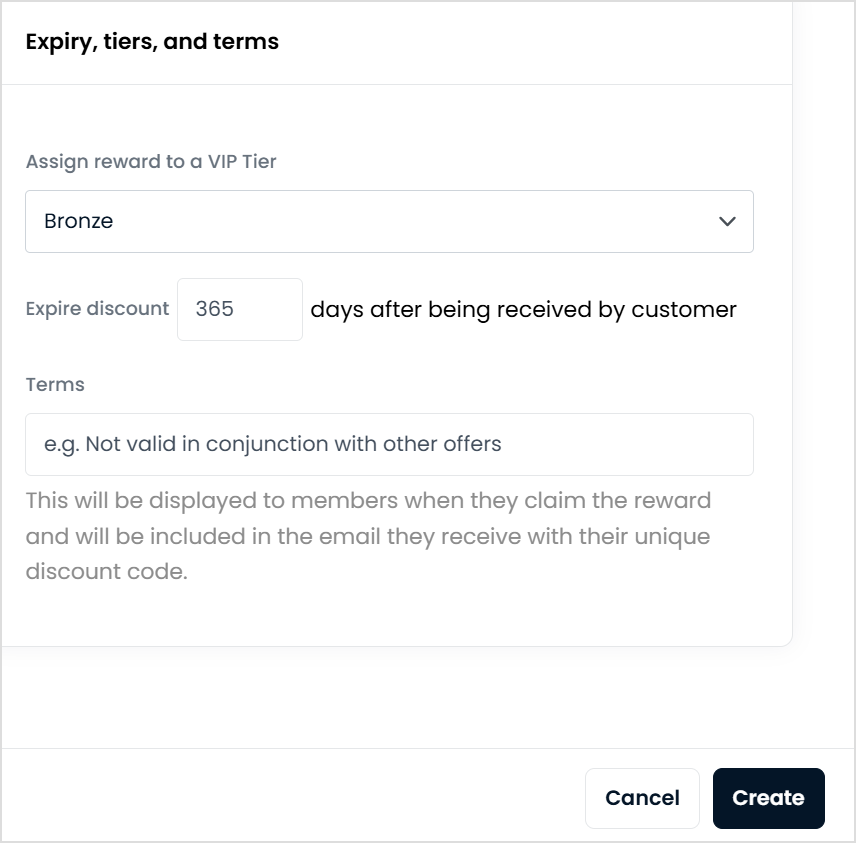
📝 Note: Loyalty reward terms are visible when a customer views a reward and when they redeem a reward. The terms are also included in the customer's reward coupon email.