-1.svg)
Create a COVID-19 contact tracing form(s)
Capture visitors' details for contact tracing via a contactless QR code flyer.
September 18, 2025🏷️ Check-in forms are unlocked with the Marketing add-on.
Check-in forms provide an easy, contactless way for visitors to check-in using their own device at your brick-and-mortar location. Visitors enter their details and also have the option to opt in to email and/or SMS marketing from your store. All check-ins are safely recorded under the form’s results and you can export if needed.
📝 Note: If you have more than one store location, create a separate form for each one.
Common questions answered in this article:
-
How do customers check themselves in?
- Who are the customers who visited my store on Saturday?

Create and customize your COVID-19 Contact Tracing form
1. In the Marsello admin, go to Customer experience > Point of Sale > Check-in forms.
2. Click Create Form to create a COVID-19 Contact Tracing form.
📝 Note: If you have multiple physical locations, you'll need to create a COVID-19 Contact Tracing form for each location.
Customize the Form
The Form section is where your customers will enter their details to check-in. First name, last name, and email address are required fields, New check-in forms include separate email and SMS consent checkboxes and the disclosure automatically. Existing forms need to be edited to add them. Include a mobile number field if you want SMS opt-ins.
3. Customize the customer's detail collection form, here you can:
-
Click on the form block to edit the fields and display text.
-
You can also remove or add new form options.
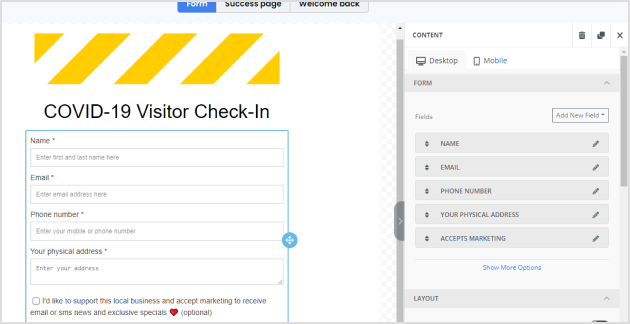
📝 Note: The two form options Name & Email Address are required fields and cannot be removed.
4. Customize the design and content of your form using drag-and-drop content blocks.
Use the drag-and-drop the content blocks on the right-hand side to customize the design of your sign-up form.
🎨 There are lots of drag-and-drop content blocks to help design your form.
→ See all Form blocks you can add and AI assistance options.
5. Click Next Step
Marketing consent
New check-in forms include separate email and SMS marketing consent checkboxes, with your disclosure text from Settings › Compliance › Marketing. Visitors can choose email, SMS, both, or neither.
📝 Note: Your disclosure text and links are added when you add the checkbox. If you change them in settings later, existing forms won’t update on their own. Re-saving a form refreshes the links only.
⚠️ Important: In the form builder, “Privacy Policy” and “Terms and Conditions” show as plain text. They become links on your live form only if the wording stays exactly as it is. If you edit that text, the links won’t show.
Update an existing check-in form for marketing consent
Use these steps if your check-in form was created before the consent checkboxes were added, or if you changed your disclosure text and want your form to show the new wording.
- Go to Customer experience > Point of Sale > Check-in forms and open the form you want to update.
- Click the form fields in the editor.
- In the right-hand sidebar, under Form, click Select… next to Fields.
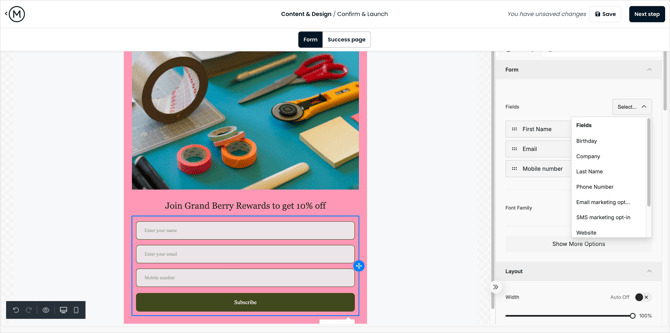
- Add the checkboxes your form needs:
- Click Email marketing opt-in.
- If your form collects a mobile number, also click SMS marketing opt-in.
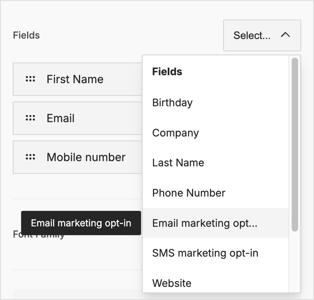
- If your form has a text block with old disclosure wording, delete that text block.
- Preview the form to check the checkboxes and disclosure text.
- Click Save.
Customize the Confirmation page (new customers)
The confirmation page notifies new customers that they've successfully checked in to your store.
6. Click on the Success page tab.

7. Customize the design of your Checked-In screen using drag-and-drop content blocks and editing the existing text.
🎨 There are lots of drag-and-drop content blocks to help design your form.
→ See all Form blocks you can add and AI assistance options.
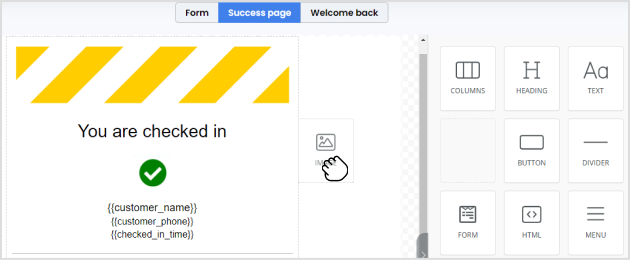
8. Click Save and hit Next Step
Customize the Confirmation page (existing customers)
The confirmation page notifies existing customers that they've successfully checked in to your store and welcomes them back.
9. Click on the Welcome Back tab.

10. Customize the design of your Welcome Back screen using drag-and-drop content blocks and editing the existing text.
🎨 There are lots of drag-and-drop content blocks to help design your form.
→ See all Form blocks you can add and AI assistance options.

11. Click Save.
12. Click Next Step in the top right-hand corner.

Enable your form & print your COVID-19 QR code flyer
1. Click Edit to name your COVID-19 Contact Tracing Form.

💡 Tip: Naming your form will make it much easier to identify if you have multiple physical locations, for example, 12 Queen Street form, etc.
2. In the preview, check the design and content of your COVID-19 contact tracing form.
3. Click Next Step.
4. Click Download your unique QR Code Flyer & print the A4 QR Code Flyer.

⚠️ Important: Each QR Code flyer is unique to the COVID-19 Contact Tracing Form, so please be careful if you are printing multiple flyers for different locations. Remember to display this in an easy place for customers to access by the entrance.
Your visitors will now be able to enter their details once they scan the QR Code from the flyer at your store.

Your customers' experience
When a visitor arrives at your physical location, they will be able to see the QR Code flyer displayed. The visitor can then scan the QR code using the camera on their phone.
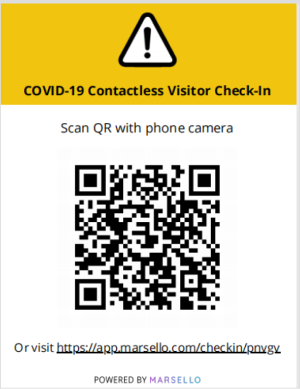
This will open your unique COVID-19 Contact Tracing Form. enter their details and tick the email and/or SMS checkbox to receive your marketing. The disclosure under the checkboxes links to your Privacy Policy and Terms & Conditions
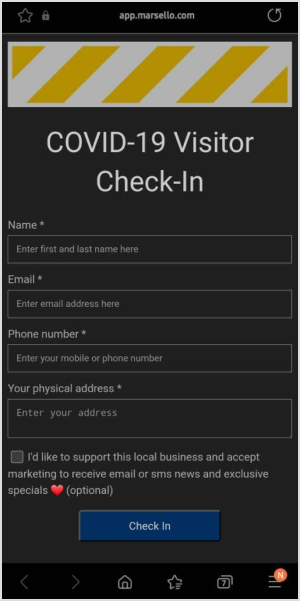
-
If the visitor opts in to receive marketing they will be automatically added to your Marsello customer list and will receive your next campaign or automation.
-
If the visitor doesn't opt-in to marketing they will only be added to the COVID-19 Contact Tracing Form results and they will not receive any marketing from your store.
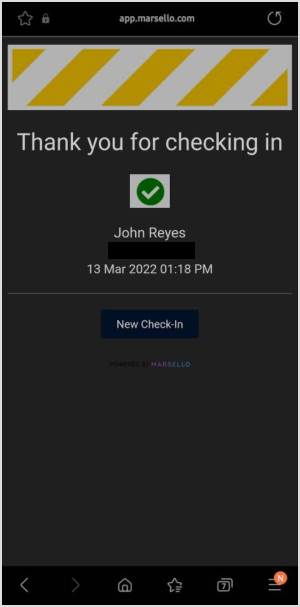
The visitor can then click check-in and then they will see a confirmation screen to let them know their check-in was successful.
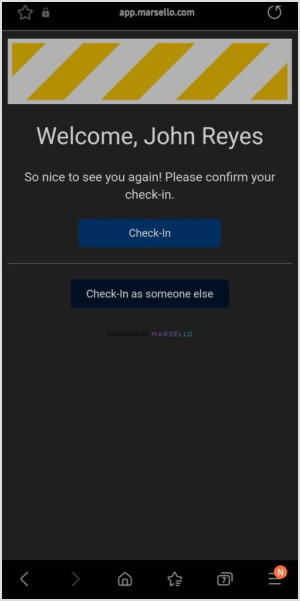
If the visitor is a returning customer, they will not have to enter their details again when they scan the QR Code, they can simply click check-in and that will automatically be recorded.
All visitor and customer check-ins are recorded safely under your COVID-19 Contact Tracing Form results.

Monitor visitor check-ins and reporting
Each time a visitor and customer checks-in they are recorded in your Form report.
1. In your Marsello admin, under Display > Customer Experience > Online > Online signup forms, go to COVID-19 Contact Tracing
2. Next to your COVID-19 Contact form, click View Check-19 Report

This will open the reporting page. Here you can see:
-
Total Check-ins: Total number of visitors who have checked in
-
Unique Visitors: Total number of unique visitors who have checked in
-
Marketing subscribers added (previously Check-ins who accepted marketing): Visitors who have checked in and also opted in to receive marketing from your store
You can get an export of this report in the top right-hand corner.