-1.svg)
Create a landing page sign-up form
Capture your Window Shoppers' email addresses via a custom-designed landing page, so you can use email to convert them into customers.
September 15, 2025
🏷️ Signup forms are unlocked with the Marketing add-on.
Create a landing page sign-up form
1. In the Marsello dashboard, go to Customer experience > Online > Signup forms and click Create Form
2. Click Create this form under the Landing Page option

3. Customize the design of your sign-up form
-
Use the drag-and-drop the content blocks on the right-hand side to customize the design of your sign-up form.
🎨 There are lots of drag-and-drop content blocks to help design your form.
→ See all Form blocks you can add and AI assistance options.
💡Quick Tip: Customize the text to set subscribers' expectations on the types of emails they can expect to receive.
4. New landing page forms include an Opt-in to receive marketing emails checkbox and your disclosure text automatically. Customers must tick this box to receive marketing emails.
If you add a mobile number field, add the Opt-in to receive marketing text messages checkbox from the form builder too. If you don’t, you’ll be prompted to add it when you save. Email and SMS consent are separate.
📝 Note: Your disclosure text and Privacy Policy and Terms & Conditions links come from Settings › Compliance › Marketing compliance when you add the checkbox. If you change them later, existing forms won’t update on their own. Re-saving a form refreshes the links only. To pull in your current wording, remove the checkbox and add it back.
⚠️ Important: In the form builder, “Privacy Policy” and “Terms and Conditions” show as plain text. They become links on your live form only if the wording stays exactly as it is. If you edit that text, the links won’t show.
Customize the form field options
-
Click on the form options block to edit the text on the form and also add new form options like birthday or custom forms.
✍️ See how to customize the Form field options
📝 Note: The two form options Name & Email Address are required fields and cannot be removed.
5. Click Save
Customize your success page
This page shows after the visitor successfully signs up.
1. In the Form editor click Success page
2. Customize your success page
-
Use the drag-and-drop the content blocks on the right-hand side to customize the design of your sign-up form.
🎨 There are lots of drag-and-drop content blocks to help design your form.
→ See all Form blocks you can add and AI assistance options.
3. Click Save

Launch your Sign-up Form
1. Click Next to go to the Review & Launch page
2. On the preview, you can review your sign-up form by clicking between Form & Success
3. Copy your unique landing page link by clicking the copy icon. Share this link on social media or your online store so visitors can sign up.

This is the link that you can share on social media or your online store so that visitors can sign up to your mailing list.
4. Click Save & Enable to start using your landing page sign-up form

Update an existing form for marketing consent
Use these steps if your form was created before the marketing consent checkboxes were added, or if you changed your disclosure text in Settings › Compliance › Marketing and want your form to show the new wording.
- Go to Customer experience > Online > Signup forms, click the drop-down arrow next to the form’s report button, and click Edit.
- Click the form fields in the editor.
- In the right-hand sidebar, under Form, click Select next to Fields.
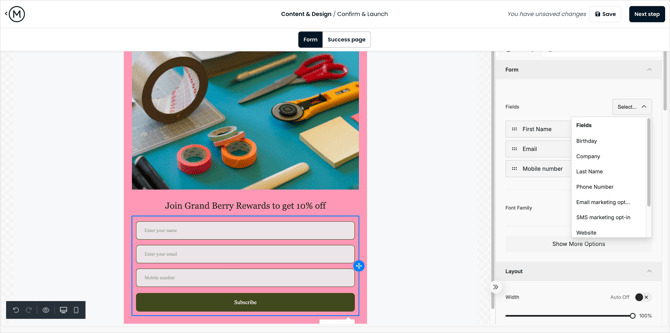
- Add the checkboxes your form needs:
- If your form collects an email address, click Email marketing opt-in.
- If your form collects a mobile number, also click SMS marketing opt-in.
- If your form has a text block with old disclosure wording, delete that text block.
- Preview the form to check the checkboxes and disclosure text.
- Click Save.
📝 Note: If the checkbox is already on your form and you want your new wording, remove the checkbox first, then add it back.
Your Window Shoppers' experience
Once you share your landing page link, visitors can sign up by entering their name and email address and clicking Subscribe.
Signing up adds them as a customer on your POS and/or eCommerce and to your Window Shopper customer segment. They only receive marketing emails if they tick the email opt-in checkbox, and marketing texts if they tick the SMS opt-in checkbox.
FAQs
Q. Can I edit my landing page form after I enable it?
A. Yes. Go to Customer experience > Online > Signup forms, click the drop-down arrow next to the form’s report button, and click Edit.
⚠️ Important: If your form doesn’t have a marketing consent checkbox yet, you’ll need to add one before you can save your changes. Add the email checkbox, plus the SMS checkbox if your form collects a mobile number.