
Why can't I add column blocks throughout my email template?
Add column blocks in Marsello email template by using container blocks and rebuilding content to enable a flexible layout.
April 9, 2026
🏷️ Marketing email campaigns are unlocked with the Marketing add-on.
If you can only place column blocks at the very top or bottom of your email template, and not throughout it, this is usually due to how the existing content structure is set up.
Before you get started
- Check App Status to rule out an outage first.
- Have the email template you are working on open in the Marsello email editor.
Does your email template use standard content blocks instead of container rows?
Marsello’s email builder relies on blocks to support column layouts.
If your template already contains standard content blocks (instead of container rows), column blocks can’t be inserted between them.
How to check
[CHECK: steps to confirm whether the template uses standard content blocks or container rows. The guide doesn't include these, so they need filling in by you or Amy.]
How to fix
To enable column blocks anywhere in your email, you’ll need to restructure the template using blocks.
Add in container blocks
-
While in the email template you are working on, click on blocks.
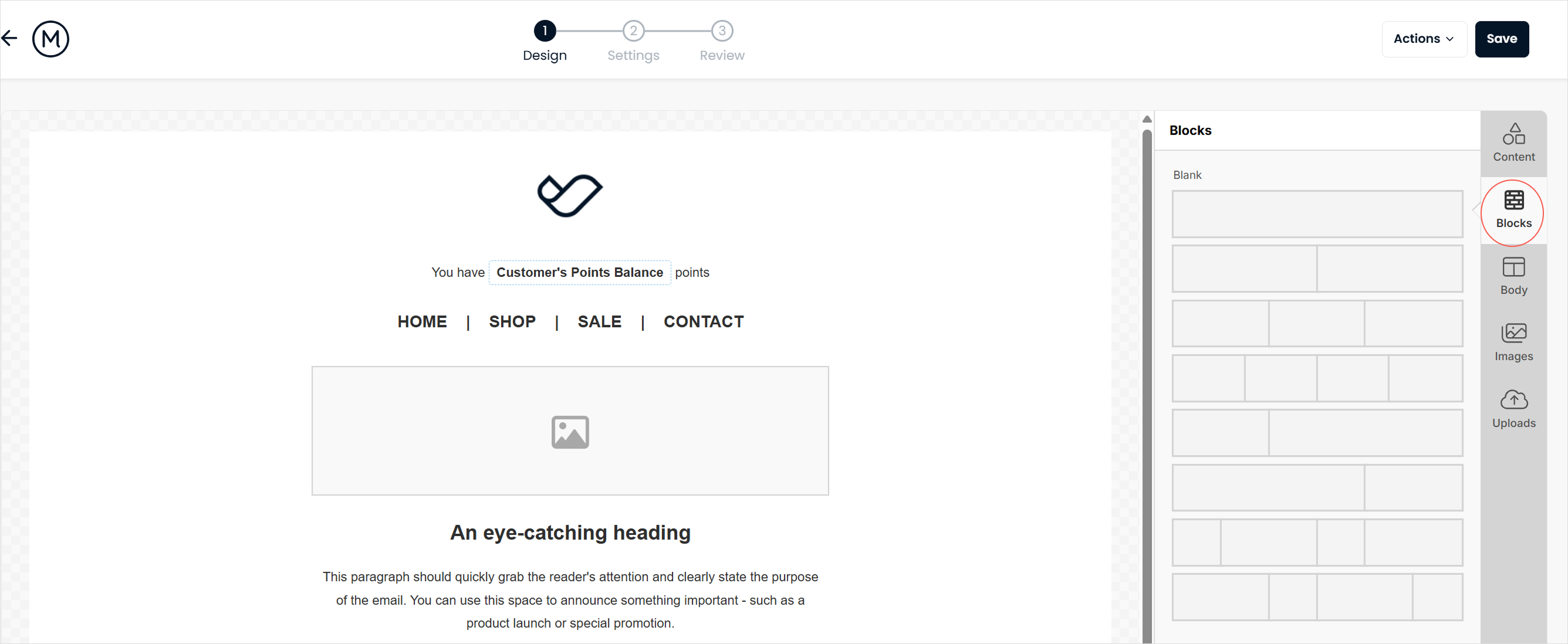
-
Drag and drop the required number of blocks into your email template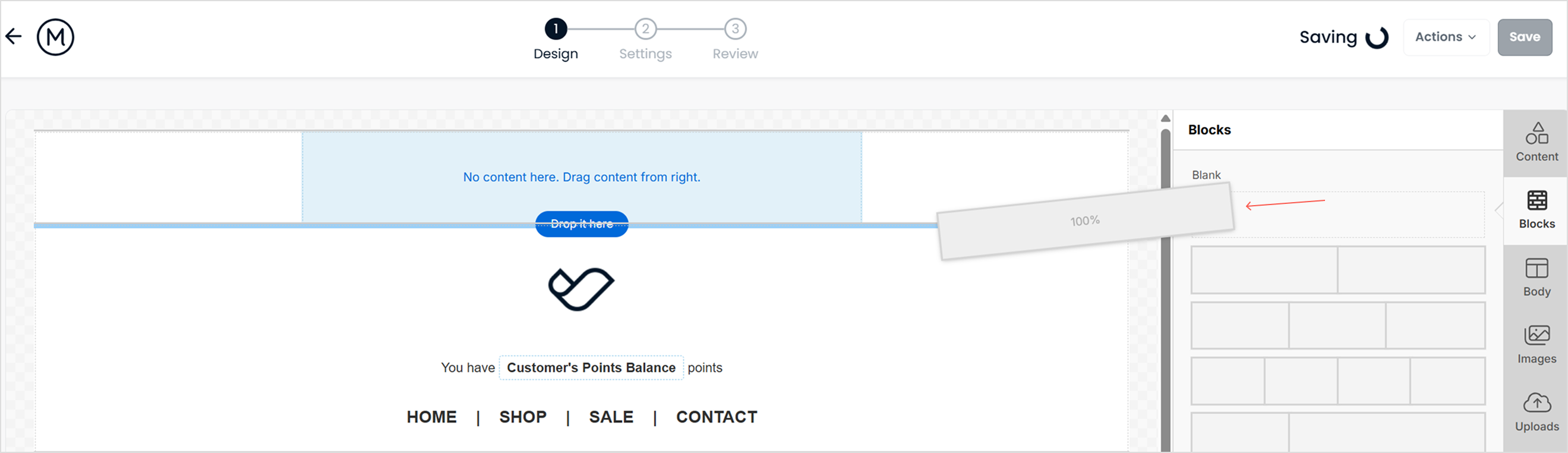
Rebuild your email inside containers
-
Click into your newly placed blocks and select the Add Content button

-
Add in your content (columns, text, images, buttons, etc.) within the blocks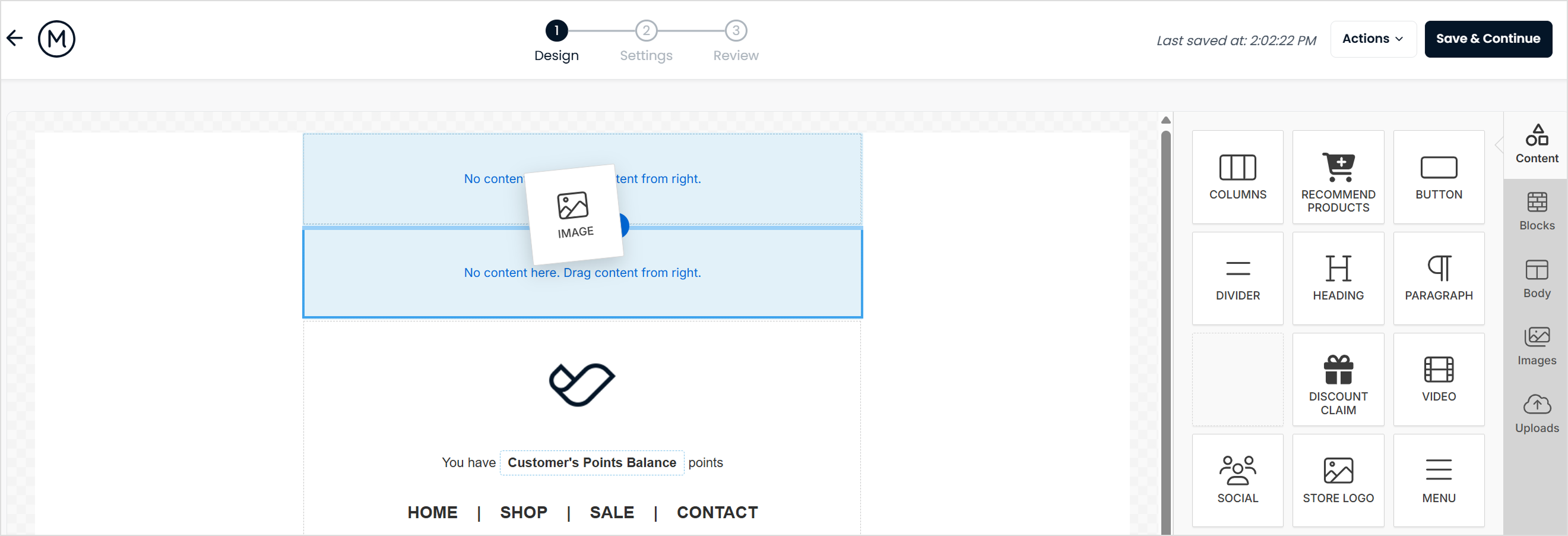
-
Remove original content blocks from the default template.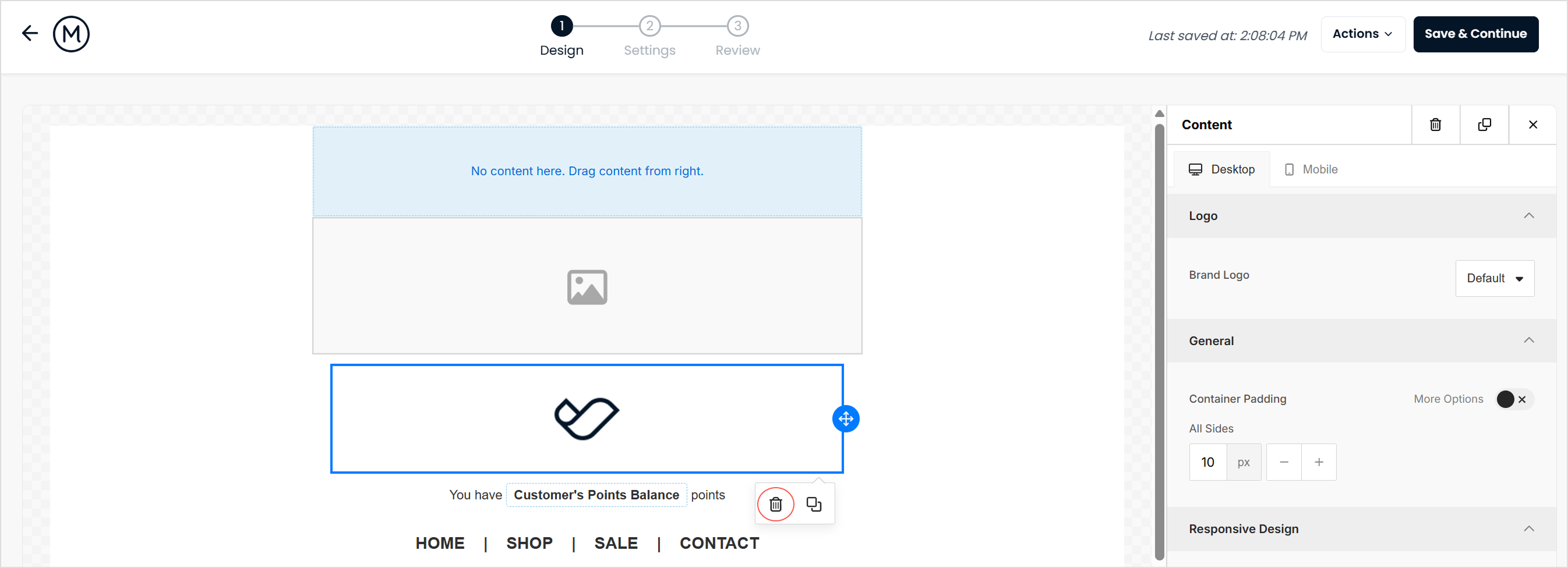
-
Click Save & Continue.
-
Complete the prompts in the settings form, review your campaign, and schedule to send.
[CHECK: what the customer should see once this is fixed, and how long it takes if there's a delay. The guide doesn't say.]
Still not working?
If you still can’t add column blocks throughout your email template after rebuilding it using blocks, contact Marsello support. When you contact us, include:
- The name of the email template or campaign you are working on.
- A screenshot of the email template in the editor, showing where you are trying to add the column block.