-1.svg)
]Cin7 Omni setup: Create the Marsello Discount Product (Required for POS redemption)
Create the $0.00 non-stock Marsello Discount product in Cin7 Omni. It's required before staff can redeem loyalty rewards and email discounts at POS with extension 1.1.21 or later.
Updated: September 22, 2026
Applies to: Cin7 Omni
This guide is specific to the Cin7 Omni POS integration.
Before you get started
Here are some key details to note about the Marsello Discount Product:
-
To allow your customers to redeem loyalty rewards & email discounts at Cin7 Omni POS, you'll first need to create a discount product in Cin7 Omni.
-
Marsello uses a Cin7 Omni product to be able to add loyalty rewards & email discounts to the sale at POS.
-
Please ensure you have also installed the Marsello Chrome Extension on every desktop you use to access the Cin7 Omni POS in-store to redeem discounts. Learn more.
-
If this product doesn't exist, the Redeem button at POS will fail or do nothing

How to create a Marsello Discount Product in Cin7 Omni
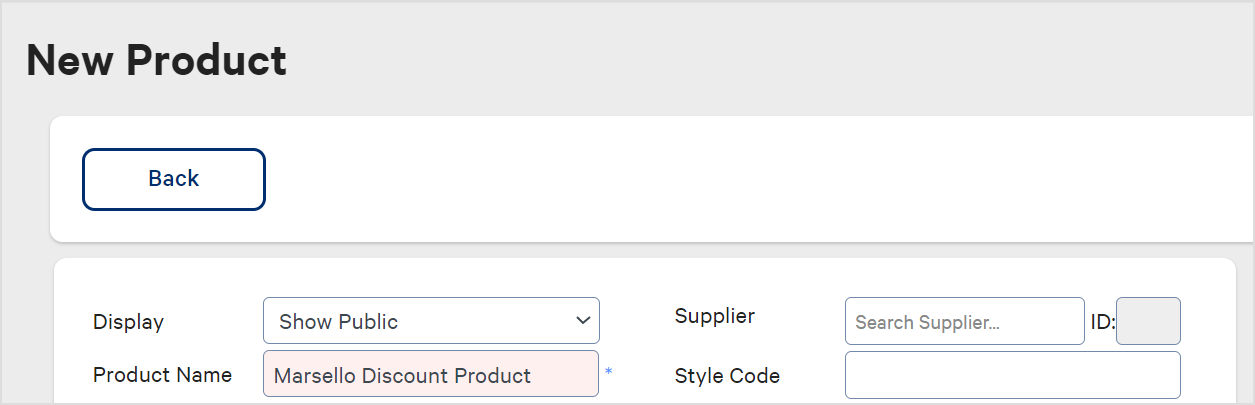
1. In your Cin7 Omni admin, go to Products and click Create New Product

2. Next to Product Name, please enter 'Marsello Discount'
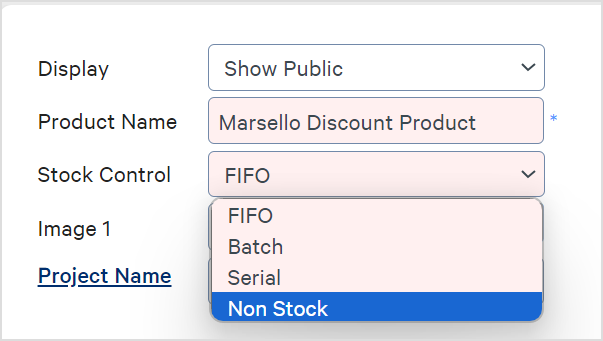
3. Next to Stock Control, please select Non Stock
4. Leave the Price field at $0.00. Marsello controls the discount amount from the product lines it's applied to — this product itself must never carry a price.
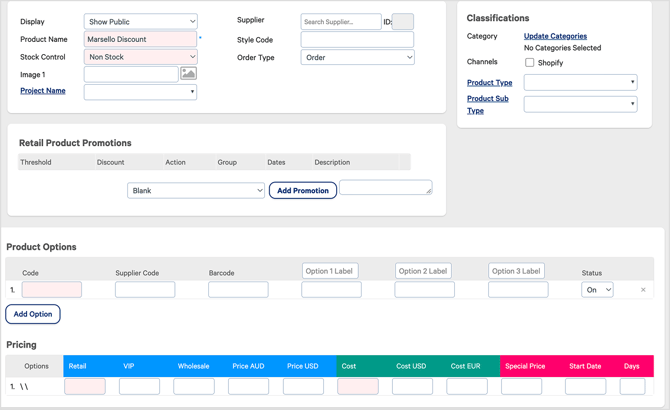
5. Click Save & Continue
6. In the URL bar, please copy your entire Product URL

7. In your Marsello admin, in the Complete your Cin7 Omni connection pop-up enter your entire Product URL.
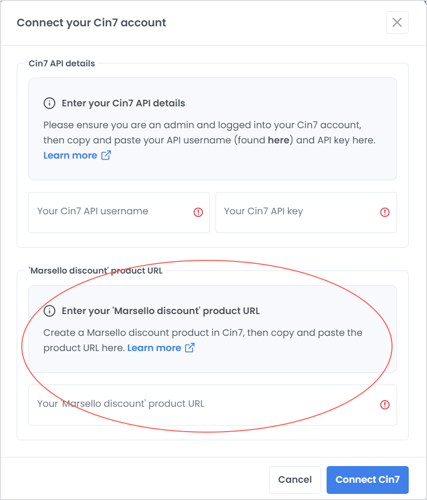
8. Click Connect Cin7.
Marsello will then link your Cin7 Omni Product to your Marsello account. This will allow you to create loyalty rewards and email discounts that your staff will be able to redeem at Cin7 Omni POS.

How this works – Your staff member's experience
When a reward is redeemed at POS, this product is added to the sale as a $0.00 line with quantity 0, so staff can see which reward was used. The discount itself is applied to the customer's product lines, not to this product — you'll see it in the Total Discount column and the Discount row of the totals panel. That's why the product must stay non-stock with no price — it's a label, not the discount.