
For Lightspeed Retail (X-Series) POS retailers who use the Marsello Chrome extension on Google Chrome, this guide shows how to process a return (refund), with or without discounts, so the customer gets back the right amount.
October 7, 2025
For Lightspeed Retail (X-Series) POS brands
This guide is specific to the Lightspeed Retail (X-Series) POS integration.
Before you get started
Here are some key details to note about processing a return that contains a Marsello discount in Lightspeed Retail (X-Series) POS:
-
This process is required for retailers using Lightspeed Retail (X-Series) POS on Google Chrome.
-
Giving the Marsello reward back to the customer is optional and depends on your store's policies.
⚠️ Important: Processing returns with the Marsello Chrome extension is now a legacy process. To improve the experience for staff and customers, contact the Marsello team to start using POS prompts, an embedded solution inside your POS.
How do I process a Marsello discount return from Sales History on Google Chrome?
-
In Lightspeed Retail (X-Series) POS, go to Sell Screen > Sales History.
-
Search for the sale to be returned using the customer's name or receipt number.
-
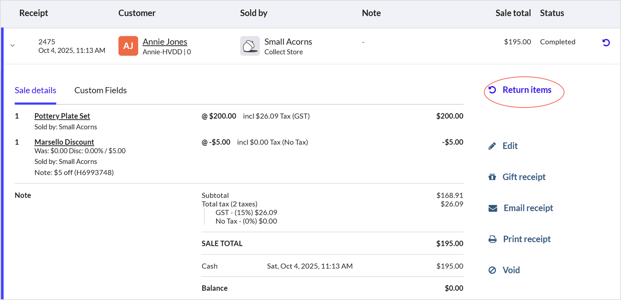
Click the sale to open it, then click Return items.
-
The original sale opens in the Sell Screen with opposite values.
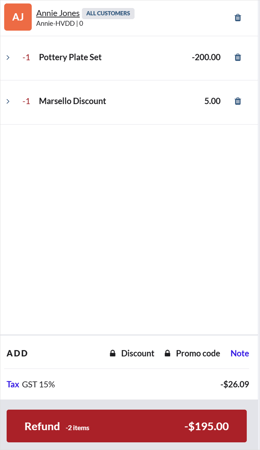
💡 Tip: If the customer isn't returning every item, use the Trash icon to remove the items they're keeping from the return.
-
Click Refund to complete the return. Choose the customer's payment method, or process the refund according to your store's policies.
How do I process a Marsello discount return manually in Lightspeed Retail (X-Series) POS?
For Lightspeed Retail (X-Series) POS on Google Chrome, you may need to process a Marsello discount return manually instead of from Sales History.
⚠️ Important: Depending on your store's tax settings, you may need to process the return manually. Marsello adds the discount through the Marsello Discount product, so the return must be processed manually in Lightspeed Retail (X-Series) POS to make sure the amount paid matches the amount you refund.
-
On your Lightspeed Retail (X-Series) POS sales screen, add the customer to the sale.

-
Search for the products your customer is returning and add the products to the sale.
-
Adjust these product details to match the original purchase:
- Set the product quantity to a negative number.
- Update the item price to match the amount the customer paid.
- Add the receipt number of the original transaction as a note.
-
Click the Pay button to complete the transaction. You'll be taken to the payment screen.
If your current register is set up to print receipts, the receipts print automatically after you refund the payment and click Complete Sale.