
Create a $-off reward discount to give customers store credit and allow them to choose what they spend it on at your store.
Updated this week
A fixed value ($-off) loyalty reward is a set amount off the customer's entire order. On the Loyalty Accelerate plan, you can add a spend threshold (minimum spend) so customers can only use the $-off reward when their order total meets or exceeds the amount you set. Follow the steps below to create a fixed value ($-off) spend threshold reward.
🏷️ Fixed value (spend threshold) $-off rewards are unlocked on the Loyalty Accelerate plan.
Before you get started
On the Loyalty Accelerate plan, fixed value (spend threshold) $-off rewards work with these integrations:
💳 POS Integrations
-
Lightspeed Restaurant (O-Series)
-
Lightspeed Retail (X-Series) (POS Prompts and iOS only)
-
Shopify POS
🛒 eCommerce Integrations
-
Lightspeed Retail (C-Series)
-
Shopify eCommerce
-
BigCommerce
-
Lightspeed Retail (E-Series)
-
WooCommerce
-
Bopple
⚠️ Important
-
We recommend offering fixed value (spend threshold) $-off rewards online only. If you also want the reward available in-store, it requires strict staff training to make sure the sale is over the spending threshold.
-
For Shopify brands, a fixed value ($-off) reward can have either a spend threshold OR apply to a specific product or collection. If you add a product or collection to the "Apply to..." fields, you no longer have the option to add a spend threshold. Also, if a Shopify reward is set to apply only to specific products or collections, the minimum spend condition may not work as expected because of Shopify's limitations on discount applications.
-
In your Marsello admin, go to Loyalty > Points program > Redeeming and click Add Reward

-
This will open a popup form where you can add the details of your reward. Please complete the following:
-
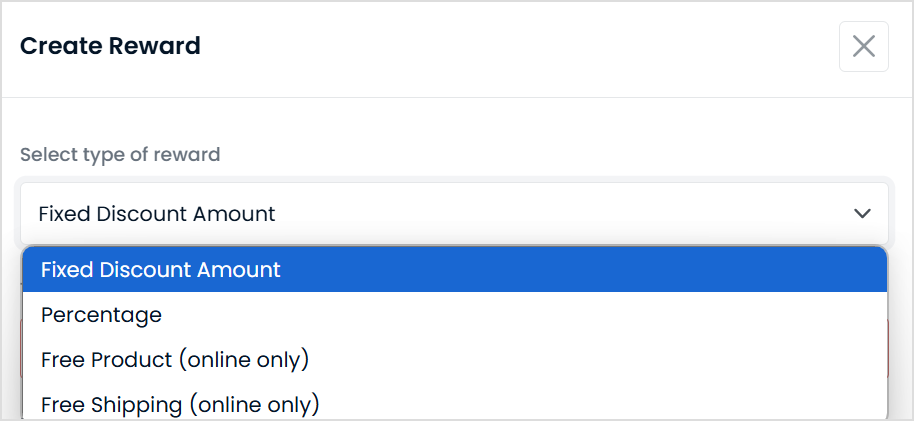
Select type of reward: Click Fixed discount amount in the drop-down menu
-
Reward Title: Give your reward a title that lets your customers know which specific product is discounted

-
Points required to redeem: Set the number of points a customer needs to spend to redeem your reward

-
Discount amount: Enter the discount amount

-
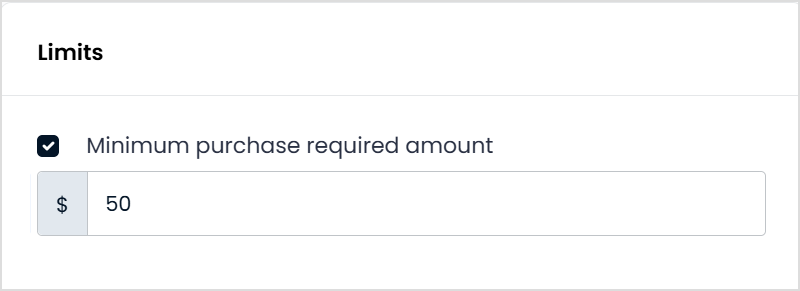
Under the Advanced options menu, scroll down to Limits and click minimum purchase required amount
-
Make sure Minimum purchase required amount is selected, then enter the Minimum order total you want the customer to spend to be able to use the reward.
-
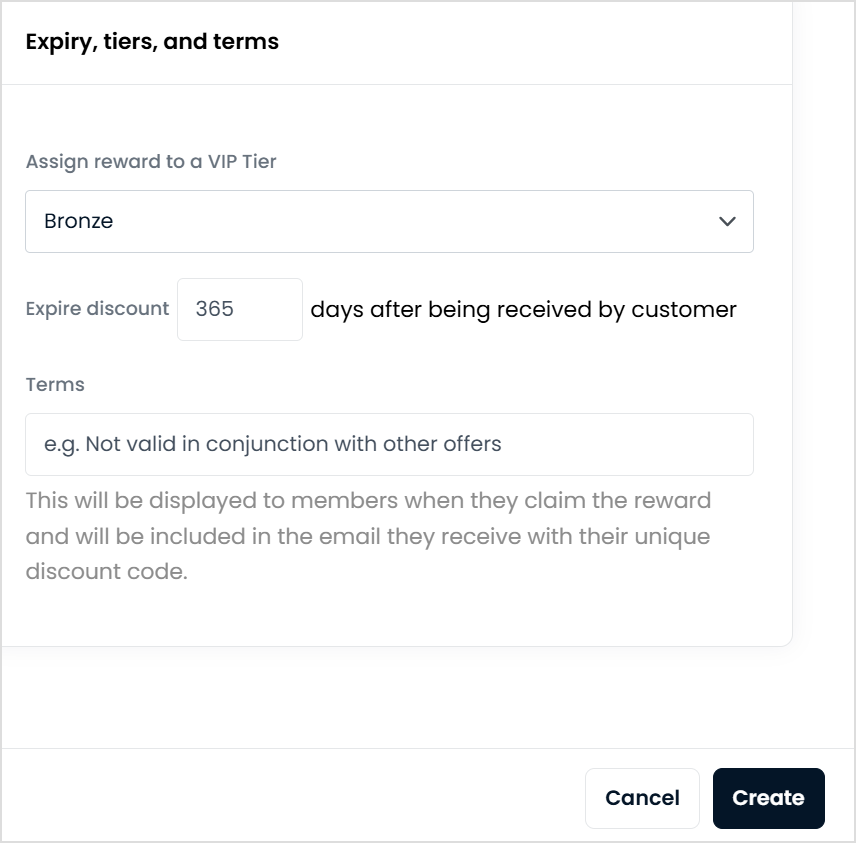
Still under the Advanced options menu, go to Expiry, tiers and terms and enter the terms you want customers to follow when they use this reward. See Examples of terms to include with your loyalty rewards.
-
Click Create.
Your fixed value ($-off) spend threshold reward now shows on the Rewards page of your loyalty widget and is ready for your customers to redeem.
💡 Tip: Make sure your reward title clearly states the value of the spend threshold so your customers know the requirements of the reward, for example $50 off orders over $150. It's also a great idea to repeat the spend threshold in your reward's terms.

Your customers' experience
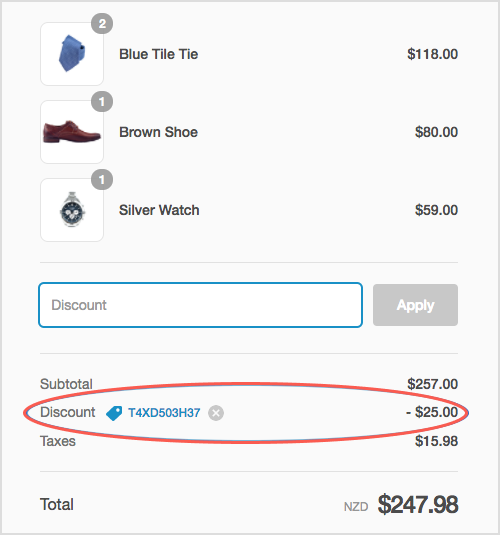
On the Loyalty Accelerate plan, when a customer redeems a fixed value ($-off) spend threshold reward online, their order total must meet or exceed the spend threshold.
If the order total does not meet or exceed the threshold, they will receive an error message when trying to apply their discount code.
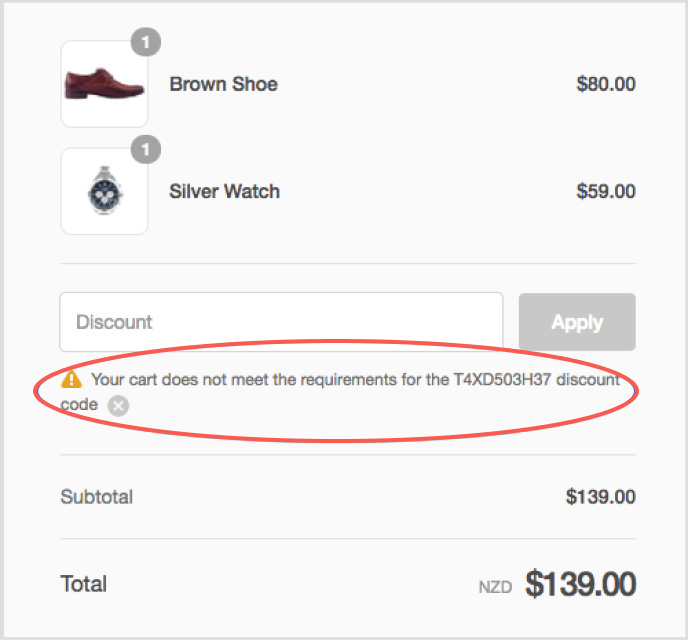
Once they have added products to their order to meet or exceed the threshold, they can simply return to checkout and the discount code.
How do I get the most out of fixed value ($-off) spend threshold rewards?
-
Get creative with your reward titles. Add variety and personality to your reward titles to create customer interest in redeeming rewards.
-
Create three or more rewards to encourage customers to earn more and more points to spend. A rewards ladder gives your customers more flexibility to choose rewards they would like to earn points towards and encourages them to spend more in order to achieve higher point-cost rewards.
-
In-store – Make sure your staff knows what your loyalty rewards are so they can inform customers at checkout. This will encourage your existing customers to be active with the loyalty program, and new customers to join.
-
Find out what rewards your customers like - try creating rewards with different discount types and amounts and measure their success.
-
It’s important to be sure you also include the relevant terms and conditions for rewards. Whether it's to encourage fair use or to protect your store, outlining exactly how and when your rewards can be redeemed ensures that your rewards are used as you intend them to be used.
