-1.svg)
Applies to: Bopple
This guide is specific to the Bopple integration.
Marsello's best practices for White-label Bopple merchants using Lightspeed Restaurant (O-Series) POS and Lightspeed Ordering (Bopple)
June 28, 2025
For White-label Bopple merchants
Create a seamless in-store and online ordering loyalty & marketing experience for your customers by connecting your Lightspeed Restaurant (O-Series) & Lightspeed Ordering (Bopple) to Marsello. This can be done with a few simple updates to redirect customers to your in-store portal to your Bopple sign-up page.

Before you get started
Here are a few key details for White-label Bopple merchants to note before using Lightspeed Restaurant (O-Series) POS, Lightspeed Ordering (Bopple), and Marsello:
-
To use Marsello on your Lightspeed Restaurant (O-Series) POS, please enable the required sites under the Integrations page.
-
Marketplace account e.g. https://bopple.app/delicious-donuts
-
White-label account e.g. https://delicious-donuts.bopple.app

How to update your in-store customer portal to your Lightspeed Ordering (Bopple) sign-up page instead.
To create a seamless in-store and online ordering experience you can direct the customers to sign-up via your Lightspeed Ordering (Bopple) sign-up page instead.
1. In your Marsello admin, go to Customer experience > Point of sale >In-Store Portal > Domain
2. Under Advanced: Override signup URL (Optional), enter your Bopple sign-up page URL

💡Tip: If you are unsure of what your Bopple sign-up link is, simply go to your Bopple store front copy your URL, and then add/signup to the end of the URL.
e.g. https://YOURBUSINESSNAME.bopple.app/signup
3. Click Save & Publish
How it works – In-store experience
New customer sign-up at Lightspeed Restaurant (O-Series) POS
After you have completed the Lightspeed Restaurant (O-Series) order, your customer will be added to your Marsello customer database.
-
The customer will automatically earn loyalty points for their purchase.
-
The customer will receive the SMS Complete Account automation (if enabled) encouraging them to complete their account.
The customer will click through the link, which will open your Bopple sign-up form.
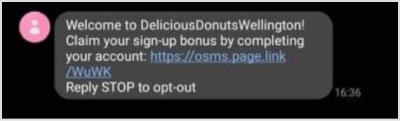
The customer will click through the link, which will open your Bopple sign-up form.
Here, the customer can complete the sign-up process by entering their name, mobile, email address and create a password for their online ordering & loyalty account.
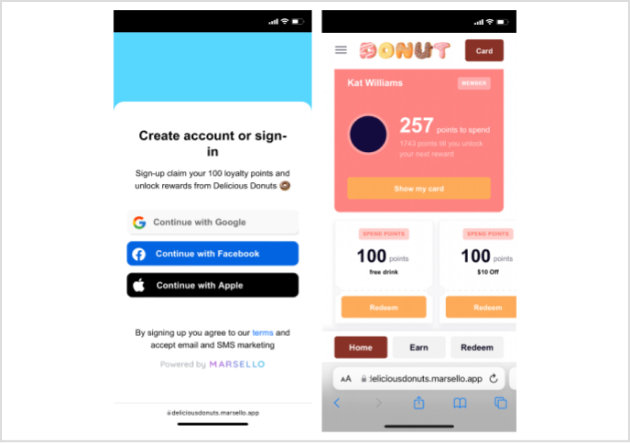
New customer sign-up via Lightspeed Ordering (Bopple)
Customers can create an account through Bopple, during their table ordering experience or when ordering online through the web their mobile app.
During checkout, the customer can sign up by entering their name, mobile, email address and create a password for their online ordering & loyalty account.
After they have completed their order, your customer will be added to your Marsello customer database.
-
The customer will automatically earn loyalty points for their purchase.
-
The customer will also receive the Earned Points loyalty notification email (if enabled). The 'Check Rewards' button will lead the customer to their Bopple loyalty profile where they can see their points balance & redeem loyalty rewards.
-
If the customer accepts marketing, they'll be able to receive your next marketing campaign and automation.
How existing customers interact with their loyalty profile
Going forward, customers can log in to their Bopple account to view their loyalty profile where they can see their points balance & redeem loyalty rewards.
Brands also searched for: bopp, nnew, bipp, bpop, bpll