-1.svg)
🏷️ Manually adding customers to VIP tiers is unlocked on the Loyalty Accelerate plan.
You can manually move an individual customer or a group of customers into a higher or lower VIP tier — without them needing to meet that tier's normal spend or points requirement. This is useful for rewarding loyal customers, correcting a tier error, or running a promotion.
📝 Note: Customers automatically enter the next VIP tier once they meet that tier's entry requirement — either points earned or amount spent.
Learn more about VIP tier entry requirements.
How to assign an individual customer to a specific VIP tier
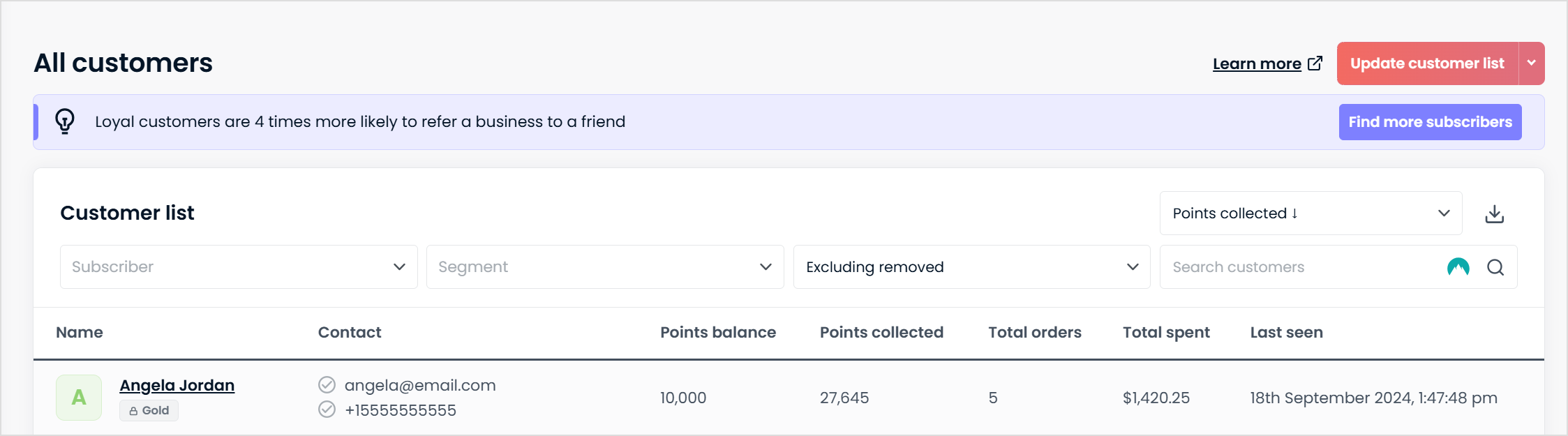
1. In the Marsello admin, go to Customers > All customers and search for the customer by name, email address, or mobile number.2. Click into the customer's name to open their profile.
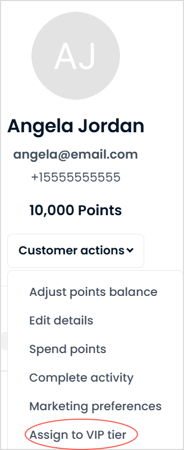
3. Under their customer profile, click Actions > Assign to VIP tier.
4. In the drop-down, select the VIP Tier you'd like to assign them to.
💡 Optional Step: If you'd like this customer to stay on this tier for their lifetime with your store, select Lock the customer to the tier. Leave this unselected if you want the customer to move between tiers automatically based on their spend or points.
5. Click Save.
📝 Note: To remove a customer from their current VIP tier, follow the same steps above and assign them a new tier.
How manual tier assignment affects spend and points tracking
When you manually assign a customer to a VIP tier, Marsello adjusts their year-to-date (YTD) spend or points total to match that tier's entry threshold. This keeps the customer in the assigned tier and prevents them from being automatically downgraded.
📝 Note: This adjustment only affects the number used for tier entry and retention. It does not add real transactions, points, or spend to the customer's account — it only changes their tier-tracking total.
Example
Jordan has spent $60 in 2026 and sits in the Base tier.
You manually assign Jordan to the Silver tier, which has a $100 entry threshold.
Marsello sets Jordan's YTD spend (for tier-tracking purposes only) to $100 — matching the Silver tier threshold. This stops Jordan from being automatically downgraded the next time their real spend is checked. Without this adjustment, Jordan's real spend ($60) plus a small purchase (say $10) would total $70 — still short of the $100 needed to stay in Silver — triggering an automatic downgrade back to Base tier.
What this means for future upgrades
Because Jordan's YTD spend is now set to $100, they only need to spend the difference between their current tier's threshold and the next tier's threshold to upgrade — not the difference between their real spend and the next threshold.
If Gold has a $200 entry threshold, Jordan needs to spend $100 ($200 − $100) to reach Gold.
Without the tier-tracking adjustment, Jordan would have needed to spend $140 ($200 − $60) to reach Gold based on their real spend.
⚠️ Important: This adjustment happens every time a customer is manually assigned or moved to a new tier, including through a bulk update — their YTD spend/points total is reset to match the new tier's entry threshold, not their actual historic spend.
How to bulk assign a group of customers to specific VIP tiers
Use Update existing customers to change VIP tiers for customers who are already in Marsello. This tool only updates existing customers — it never creates new customer profiles. A row that doesn't match an existing customer will fail with a reason. Rows that match more than one customer will also fail. To add new customers, use Import customers.
💡 Tip: You can update VIP tiers, points balances and tags in the same upload.
⚠️ Important: Your VIP program must be enabled before importing a bulk VIP list updating VIP tiers in bulk. If the VIP program is not active, the import update will not correctly assign customers to VIP tiers.
Prepare your CSV file
1. Open your CSV as a spreadsheet.2. Delete all columns except the following:
- First Name (required)
- Last Name
- Your chosen matching identifier — Email, Mobile, Custom/Integration ID, LoyaltyApi ID, or Marsello ExportID. If you use Mobile, use international format, e.g. +14165550000.
- VIP Tier Name
⚠️ Important: First name, and your chosen matching identifier are required. If these values are missing, that row will fail.
| Column | Heading |
|---|---|
| First Name | First Name |
| Last Name | Last Name |
| Your chosen identifier | The identifier name, e.g. Email |
| VIP Tier Name | Tiername |
Your file should look like this (using Email as the identifier):
| First Name | Last Name | Tiername | |
|---|---|---|---|
| Jane | Smith | jane@example.com | Gold Tier |
| Sam | Lee | sam@example.com | basetier |
4. Check that your Tiername column follows these rules:
- The value must match a tier name in your VIP program exactly. For example, if your tier is named "Gold Tier," entering "Goldtier" or "Gold-tier" will not assign the customer to that tier — the row will fail.
- If the Tiername value is empty or null, the importer checks whether the customer already has a VIP tier. If not, they're assigned to the base tier of your VIP Program.
- If the Tiername value is "basetier," the customer is assigned to the bottom tier of your VIP Program.
💡Quick Tip: To save a file as a .CSV, in the spreadsheet tool, this can often be found under Export to or Download as in the settings menu.
Update your customers' VIP tiers in Marsello
1. In the Marsello admin, go to Customers > All customers.
1. In the Marsello admin, go to Customers
2. Click the Manage Customer List dropdown and select Update existing customers.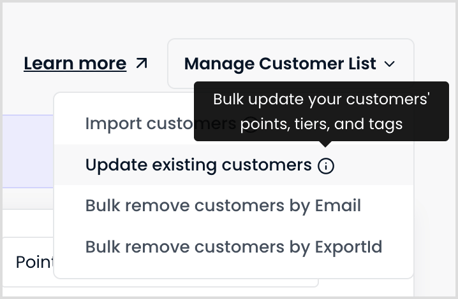
3. In the pop-up, check VIP tier. (You can also check Tags here if you'd like to tag these customers — VIP tier itself needs no extra setup.)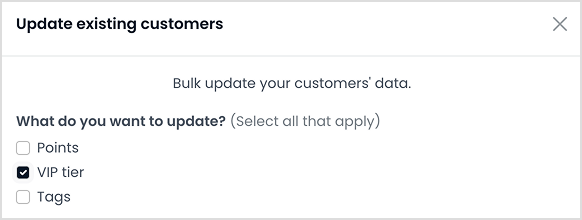
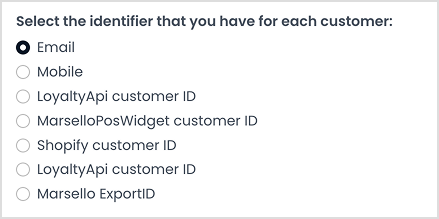
4. Select the identifier you'll use to match customers: Email, Mobile, Custom/Integration ID, LoyaltyApi ID, or Marsello ExportID. This should match the identifier column in your CSV.
- If you select Mobile, you'll see a reminder to format numbers correctly — include the country code, e.g.
+14165550000.
5. Drag and drop your CSV file into the upload box, browse to select it, or paste your data directly into the table.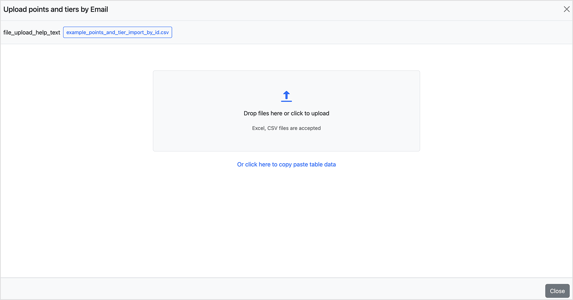
6. Select your header row, then click Next. Your header row is the row with the column headings in the spreadsheet.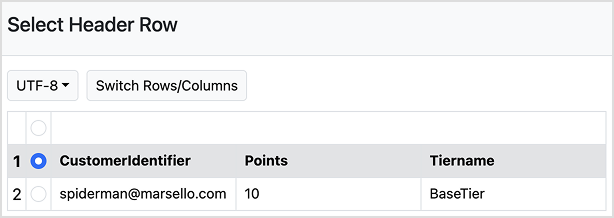
7. Map your Column headings. Match the column heading in the template field to the correct heading of your CSV file. Then click Next
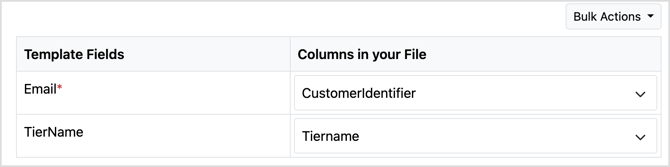
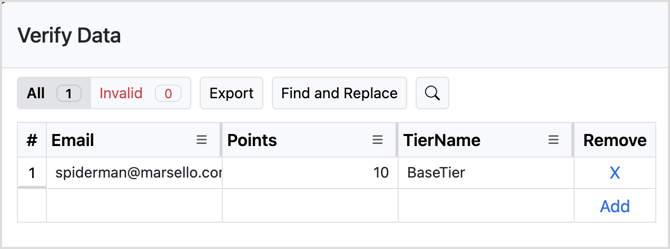
8. Verify Data
-
Check that all details are in the correct fields (e.g., first names in First Name, valid emails in Email).
-
Fix any errors in-app within the table or offline by selecting export.
9. Review and confirm.
Fix import errors
-
You can fix errors either in-app or by exporting the file.
Fix errors in-app
Use the Invalid tab to quickly find issues. Any row with an error appears in red — click into the field with the error to update it.
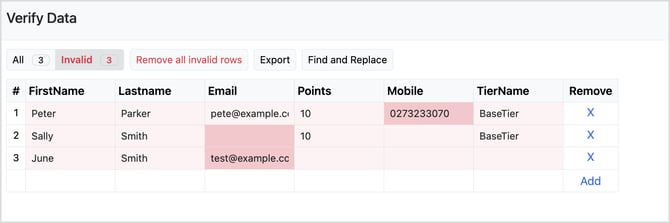
Fix errors via export
Click Export to download your data as an .xlsx file. Rows with errors appear in red, and hovering over a row shows a detailed description of the error.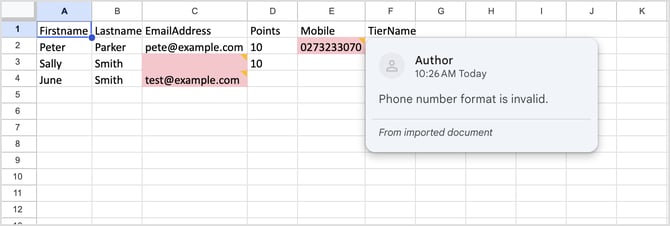
💡 Quick tip: Open the exported file in Excel or Google Sheets and filter by color in each column to show only invalid rows. Click into each flagged field to make the update.
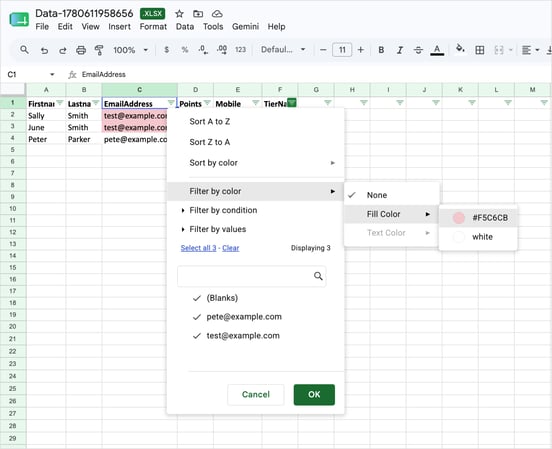
When your file is ready, close the previous import and upload your corrected file. Complete the upload and mapping steps again to cleanly import your updated data.
⚠️ Important — common causes of invalid rows:
- Blank rows
- Missing First Name, Last Name, or identifier
- First name doesn't start with a letter, or contains symbols (#$^&)
- Invalid email format
- Mobile number not in international format (+ followed by the country code, e.g. +6427123123)
- Extra whitespace at the end of an email or mobile number
- File contains more than 100,000 customers (maximum limit)
- Remove unwanted entries by clicking the X in the Remove column.
- Files can contain a maximum of 100,000 customers. Split larger lists into smaller files.
Submit your update
1. Click Submit. A confirmation window shows what was uploaded and how each column was mapped. Review the details, then click Upload CSV File to start the update.
.png?width=359&height=300&name=Screenshot%202026-10-12%20at%203.00.08%20PM%20(1).png)
The update runs in the background and may take up to 24 hours, depending on the size of your file. When it’s finished, you’ll receive an import report by email listing any rows that failed and why.
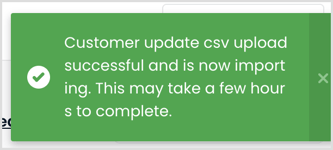
⏳ Imports may take up to 24 hours, depending on file size.
Your customers' VIP tier status will update (up or down) to the tier you specified. You'll receive an import report by email listing any rows that failed and why. Rows fail at this stage if they don't match an existing customer, match more than one customer, or the tier name doesn't match a tier in your VIP program.
📝 Note:
-
If you assign a customer to a tier manually, they'll remain in that tier unless you've enabled VIP Tier Expiry in your global settings. If expiry is enabled, customers stay in that tier for the remainder of the current year and the following year.
-
Bulk VIP tier updates are logged as manual changes on each customer's profile, the same as an individual tier assignment.
Your customers' experience
- The next time a customer makes a purchase in-store or online, they'll earn points using their new VIP tier's earning rules.
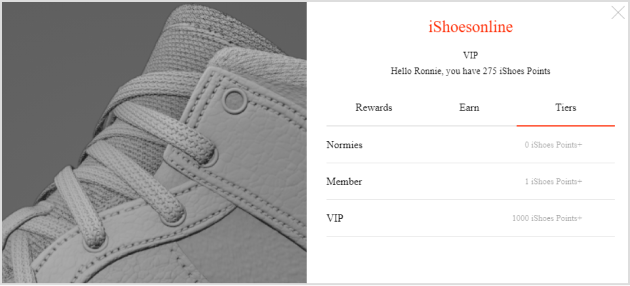
- Their VIP status will display on your loyalty widget's Earn tab, where they can see how many points they've earned in total.
- Customers can also see how many points they'll earn per purchase under the Tiers tab.