-1.svg)
Cin7 Omni: Connect to Marsello
Connect Cin7 Omni POS to Marsello using a dedicated API connection, set the required API permissions, and link your Marsello Discount product.
Updated: September 29, 2026
Applies to: Cin7 Omni
This guide is specific to the Cin7 Omni POS integration.
Connecting Cin7 Omni to Marsello syncs your customers, orders and products from Cin7 Omni POS into Marsello. Customers earn points on in-store purchases, and your staff can redeem loyalty rewards and email discounts at the till.
You can connect Cin7 Omni to Marsello in two ways:
Before you get started
Here are some key details to note about connecting Cin7 Omni's API to Marsello:
- You'll need admin access to both Cin7 Omni and Marsello.
- A dedicated Cin7 Omni API connection for Marsello. Cin7 Omni limits how many requests each API connection can make, so sharing a connection with another app can delay syncing. If your existing connection is used by another app, create a new one, or contact Cin7 Omni support.
- A Marsello Discount product in Cin7 Omni. You'll paste its URL into Marsello during setup, so you may want to create it first.
How do I connect Cin 7 Omni POS to Marsello during sign-up?
Getting started with Marsello is quick—connect your Cin7 Omni POS during the sign-up process.
1. From Marsello's website, select the Start a free trial button.
2. Follow the prompts to enter your brand's details and click Continue.

3. From the Connect a sales platform step, select Cin7 Omni POS.
4. If required, confirm the authorization of the connection between Marsello and Cin7 Omni POS. Click Confirm.
5. This will form the connection between Cin 7 Omni and Marsello. Click Continue.
6. Select the Marsello subscription that works best for your brand. Click Start free trial.

Your orders and customers will now begin to sync through to your Marsello account 🎉
Cin7 Omni POS will now display in your Marsello app admin under the Integrations page, including any POS sites listed on your CIn7 Omni account.
⚠️ Important: Please review your enabled Cin 7 Omni site(s) and disable any sites that are not currently in use.
How do I connect Cin7 Omni POS to Marsello from my Marsello dashboard?
If you didn't connect Cin7 Omni POS during sign-up, you can connect it at any time from your Marsello dashboard.
1. From your Marsello dashboard, go to Settings > Connections > Sales platforms
2. Click Connect sales platform

3. Next to Cin 7 Omni POS, click Connect

From the POS & integrations page
1 Click Connect sales platform

2. After clicking connect, you will be prompted to enter a few more details to complete your Cin7 Omni connection. You will need to add:
-
Your Cin7 Omni API Username
-
Your Cin7 Omni API Key

How to find your Cin7 Omni API details
1. In your Cin7 Omni admin, go to the Settings section
2. Under Settings, click Integrations & API

3. Under Configure your integrations, click API v1
4. Next to API Username, copy your API Username

5. In the Marsello pop-up, next to API username, paste your Cin7 Omni API Username.

6. In Cin7 Omni, add an API Connection to access your new API Key or if you are repurposing an API connection, you'll need to regenerate your API Key.
📖 Learn more: For more information on API connections please see Cin7 Omni's API V1 help center article or contact their Support team for more details about API connections. Before repurposing a current API key, please ensure that you are happy to disconnect the 3rd party that may be currently using this API connection.
7. Copy your Cin7 Omni API Key

8. In the Marsello pop-up, next to API Key, paste your Cin7 Omni API Key

Update your Cin7 Omni API Key permissions
9. In Cin7 Omni, next to your API connection, click Permissions

10. Please check/update your API key permissions to match the permissions selected below:
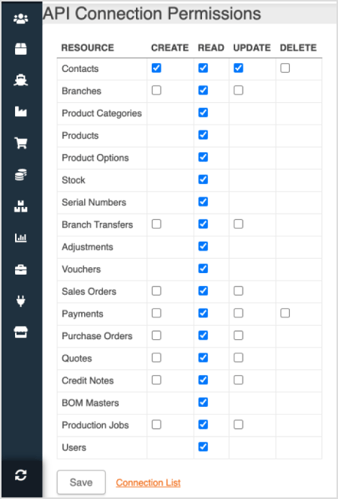
11. Click Save
How to create a 'Marsello Discount' Product in Cin7 Omni
1. In your Cin7 Omni admin, go to Products
2. Click Create New Product

3. Next to Product Name, please enter 'Marsello Discount'

4. Next to Stock Control, please select Non-Stock

5. Click Save & Continue
6. In the URL bar, please copy your entire Product URL

7. In your Marsello admin, in the Complete your Cin7 Omni connection pop-up enter your entire Product URL.

8. Click Authenticate
When you click Authenticate, Marsello will start the initial customer sync and link your Cin7 Omni 'Marsello Discount' product to your Marsello account.
- Starts the initial customer sync. Marsello uses your API connection to sync all customers from your Cin7 Omni database into Marsello. This can take 1–3 days depending on the size of your database.
- Links your Marsello Discount product. Staff can now redeem loyalty rewards and email discounts for customers at Cin7 Omni POS. When a reward is redeemed, the discount is applied to the product lines on the sale, and the Marsello Discount product is added as a $0.00 line that shows which reward was used. It doesn't change the sale total.
9. Cin7 Omni will now display in your Marsello app admin under the Integrations page.