-1.svg)
How do POS prompts guide staff to add a new customer to your customer database?
Add customers to the sale in Lightspeed Retail (X-Series) POS Prompts and capture their marketing opt-in status during checkout.
September 2, 2026
Applies to: Lightspeed Retail (X-Series)POS
This guide is specific to the Lightspeed Retail (X-Series) POS integration.
Easily add new customers in-store using your Lightspeed Retail (X-Series) POS sale screen on any device.
📝 Note: POS Prompts are available for all devices, desktop, tablet & iOS devices.
Before you start
Ensure that the following installation has been completed:
-
Your Marsello account is billed through your Lightspeed account
-
You have access to Workflows in your Lightspeed Retail (X-Series) back office admin. To check:
-
In your Lightspeed Retail (X-Series) POS admin, go to Staff experience > POS Prompts
-4.png?width=203&height=300&name=image%202%20(7)-4.png)
-
In your Marsello account:
-
Your POS sites are enabled under the Integrations page
-
You have enabled the Loyalty Reward Prompt under the POS Prompts settings page
-
-4.png)
🤔 Unsure? Please contact the support team, and they'll be able to help.
What steps should staff follow to add a new customer to your database using POS prompts?
To add a new customer to your Marsello customer database, simply add the new customer to the sale in Lightspeed Retail (X-Series).
1. Add the customer's products that they want to buy to the sale and tap Add a Customer

2. Add your new customer's details:
-
First Name
-
Last Name
-
Email Address (required)
📝 Note: Only First Name, Last Name, and Email are required for adding customers to your Marsello database. Email address is the unique identifier that is used to match customer profiles with any other sales channels you have connected e.g. Shopify eCommerce, WooCommerce, etc.
You can also collect:
-
Mobile Number
-
Birthday (Under 'Show more fields')
Your customers can also add these additional details via the Complete Profile earn option.
📝 Note: When collecting mobile numbers, please include the country code and avoid any additional formatting like spaces, brackets, or hyphens. An example of what this would look like is +15555555555.
What steps should staff follow to capture customer's marketing opt-in preferences using POS prompts?
When a new customer makes an in-store purchase, it's important that staff ask if they want to join their database and receive marketing via email and SMS.
⚠️ Important: By default, customers do not accept marketing, and they must opt-in to receive marketing through Marsello.
3. Under Marketing and communication, you can indicate the customer's marketing preferences.
- If the customer accepts email marketing, select Customer consents to receive marketing emails
- If the customer accepts SMS marketing, select Customer consents to receive marketing SMS

📝 Note: The customer's marketing preferences will then sync to their Marsello profile. Customers who accept marketing will be eligible to receive email and SMS marketing from your store sent via Marsello.
-
If the customer declines to receive marketing and promotional messages, ensure the following options remain unselected.
- Customer consents to receive marketing emails
- Customer consents to receive marketing SMS

📝 Note: This customer will not receive email or SMS marketing from your store sent via Marsello.
4. Tap Add new customer, the customer will then be added to the sale
5. Complete the sale. The customer will be automatically added to your Marsello customer database, including their details, marketing preference, and sales data.
Your customers' experience
New Customers
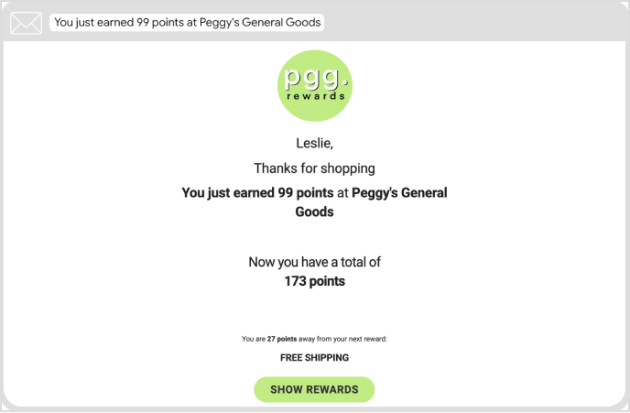
When you complete the sale, the customer is added to your loyalty program and Marsello customer database. Along with their purchase, they automatically earn loyalty points, and if you have the "Earned Points" email notification enabled, they will receive an email notifying them about the points they've earned, their updated loyalty points balance, and the number of points required to reach their next reward.
Plus, if the customer accepts marketing, they become eligible to receive your upcoming marketing campaigns and automation, providing a better engagement experience.
Existing Customers
When you complete the sale, they automatically earn loyalty points, and if you have the "Earned Points" the "Earned Points Email" feature turned on, they will automatically receive an email notifying them of the points they've earned for their recent purchase and the number of points required to reach their next reward.
The Loyalty Reward POS Prompt will encourage your staff to ask customers if they'd like to use their rewards at the point of sale creating a positive and delightful experience for customers, leaving them pleasantly surprised and fostering stronger customer loyalty.
Points earned email example
Brands also searched for: scre, ocst, kiosk, ppromt, posprompt, poprompt, redde