-1.svg)
How do I migrate my loyalty program from Lightspeed Loyalty to Marsello?
Move your customers' loyalty balances from Lightspeed Loyalty into Marsello.
For Lightspeed Retail (X-Series) POS brands
Updated this week
How do I match my Marsello settings with my Lightspeed Loyalty Settings?
Marsello’s loyalty program uses a points-based system, while Lightspeed’s uses a percentage-based cash-back system.
To make your transition smoother, we recommend updating these two settings in Marsello to match your current Lightspeed setup:
💡 Optional Step: If you want to start fresh with your new loyalty program and only migrate customers’ points, skip to the section: How Do I Prepare My Lightspeed Loyalty CSV File for Import Into Marsello?How do I match my Lightspeed Loyalty earning rule to Marsello's Making a Purchase earning rule?
In your Lightspeed Retail (X-Series) POS admin
1. Click Set-up > Loyalty to open your Lightspeed loyalty settings

2. Check the rate that your customers earn Lightspeed Loyalty $.
3. Convert your Lightspeed Earning Rule to Marsello's Points Earn Rule. To make the two systems match, you need to work out how many dollars a customer must spend to earn $1 cashback—then set that as points in Marsello.
📝Note:
-
Lightspeed Loyalty:
-
Customers earn cashback in dollars.
-
-
Marsello:
-
Customers earn points based on spend (e.g., spend $X to earn 1 point).
-
The “$ Spend” value is the amount a customer must spend to earn 1 loyalty point.
-
-
Use the formula: Marsello Spend per Point = Spend required / Cashback Earned
-
Example: In Lightspeed, customers earn $1 for every $10 spent. $10 ÷ $1 = 10, so set Marsello to spend $10 to earn 1 point.
-
From your Marsello dashboard
4. Go to the Loyalty tab and click Points program > Earning
5. Next to Making a purchase, click Edit
6. Enter the number of points per $ spend you want customers to earn according to your Lightspeed Loyalty settings.
7. Click Save
📖 Learn more: Update how many points customers earn for Making a purchase.
How do I match my Lightspeed Loyalty earning rule to Marsello's Completing their profile earning rule?
Marsello’s Completing their Profile earn option rewards customers for adding extra details like their birthday, gender, and mobile number. You can match your Lightspeed Loyalty Sign-up Bonus to this Marsello option by following the steps below.
From your Lightspeed Retail (X-Series) POS admin
1. Click Set-up > Loyalty to open your Lightspeed loyalty settings
2. Find the Signup-bonus amount
3. Convert your Lightspeed Sign-up bonus amount to Marsello's Completing Their Profile Earn Rule. If you matched your Making a purchase rule using the steps above, 1 point in Marsello is worth the same as $1 in Lightspeed Loyalty. Enter your sign-up bonus dollar amount as points. For example, a $5 sign-up bonus = 5 points.
If you're using a different earn rate in Marsello, use this formula:
Points = Sign-up bonus ($) × Lightspeed spend per $1 cashback ÷ Marsello spend per point
Example: $5 bonus, Lightspeed $10 = $1, Marsello $1 = 1 point: 5 × 10 ÷ 1 = 50 points.
-
Use the formula Sign-up Bonus ($) × Points per $ Spend (Marsello earn rule) to convert
From your Marsello dashboard
4. Go to Loyalty > Points Program > Earning
5. Next to Complete Profile, click Edit
6. Enter the number of points you want customers to earn when they complete their profile, using your result from step 3.
7. Click Save changes
💡Tip: Learn more about setting the complete profile earn option here
How do I prepare my Lightspeed Loyalty .csv file for import into Marsello?
To ensure that your Lightspeed Loyalty .csv is successfully imported into Marsello, it is important to format your .csv according to the steps below.
1. From your Lightspeed Retail (X-Series) POS admin, go to the Customers tab and select export list to run an export of your Lightspeed Loyalty customers.
⚠️ Important: The Export List feature is only available on a Desktop or Laptop.
2. Open your .csv as a spreadsheet
3. Keep only the following columns and remove all others.
- First Name (required)
- Last Name
- Your chosen matching identifier — Email, Mobile, Custom/Integration ID, LoyaltyApi ID, or Marsello ExportID. (If you use Mobile, use international format, e.g. +14165550000.)
- Points Balance (required for this guide — enter
0if not applicable). This is the column holding each customer's Lightspeed loyalty balance. Rename it to Points Balance.
💡 Tip: Not all of your customers have an email address? Use an identifier every customer has, such as Mobile or Custom/Integration ID, so customers without an email are still updated.
Example (using Email as the identifier):
| First Name | Last Name | Points Balance | |
|---|---|---|---|
| Jane | Smith | jane@example.com | 120 |
| Sam | Lee | sam@example.com | 0 |
⚠️ Important: First Name and whichever identifier you use. Rows missing either will fail.
Your final template should look like this:

4. Check your Points column amounts for accuracy.
💡 Tip:
-
If you converted your Lightspeed Loyalty settings
If you have already updated your Making a purchase earn option in Marsello to match your Lightspeed Loyalty settings, you do not need to adjust customer balances.
You can skip this step and go to Save and export your file
-
If you created a new Marsello loyalty program
If you’ve created a new Marsello loyalty program with different earning rules, you’ll need to convert your customers’ Lightspeed loyalty balances to match the new points system.
Example conversion
-
Lightspeed: $10 spent = $1 Loyalty
-
Marsello: 1 point per $1 spent
-
Conversion: Multiply each customer’s Lightspeed loyalty $ balance by 10 to get their new Marsello points balance.
Steps to Update Balances in Your Spreadsheet
1. Open your customer loyalty spreadsheet.
2. Add a new column to the right of the existing Points column. Name it Points (New).
=D2*10
-
D2= the first cell of your Points column. Change it if your Points column isn't column D. -
10= the multiplier (based on your conversion rule)
4. Copy the formula down the entire column to apply it to all customers.
5. Replace the old balances:
-
Copy the Points (New) column
-
Paste values only into the original Points column
6. Delete the Points (New) column so only the updated Points column remains.
7. Save and export your file as a CSV. In most spreadsheet tools, you can do this under Export to or Download as in the File menu.
Your spreadsheet now reflects the converted Marsello points balances, ready for upload.
⚠️ Important: Double-check your conversion multiplier before applying it to all customers. Using the wrong value could result in customers receiving too many or too few points in Marsello.
How do I update my customers' points balances in Marsello?
📝 Note:
- Your customers must already be in Marsello through your Lightspeed X-Series connection. Any customer not found will fail. To add new customers, use Import customers.
-
This tool only updates existing customers — a row that doesn't match one will fail with a reason instead of creating a new profile. Rows matching more than one customer will also fail.
1. In Marsello, go to Customers > All Customers.
2. Click the Manage Customer List dropdown and select Update existing customers.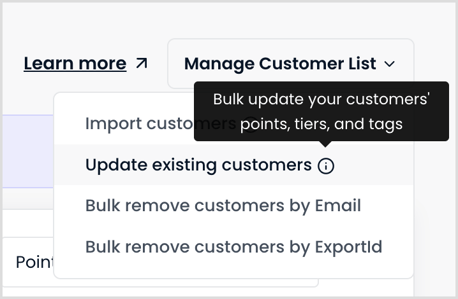
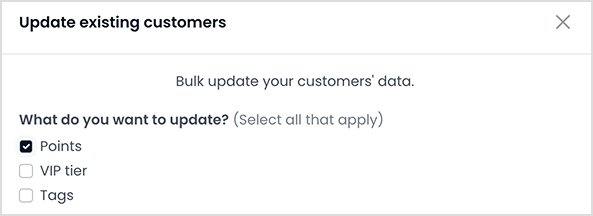
3. In the pop-up, choose which fields to update: Points, VIP tier, and/or Tags. For this migration, select Points (and Tags, if you want to tag these customers for a segment). At least one field is required.
4. Select the identifier you'll use to match your Lightspeed customers to their Marsello profiles: Email, Mobile, Custom/Integration ID, LoyaltyApi ID, or Marsello ExportID. (Use the same identifier you included in your CSV.). If you select Mobile, you'll see a reminder to format numbers correctly — include the country code, e.g. +14165550000.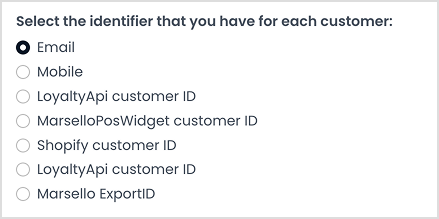
5. Since you selected Points, choose how points should be applied:
-
- Add imported points to customers' current balance — if your Points column is set to 0, no points will be added.
- Replace customers' current balance with the imported points balance - if your Points column is set to 0, all balances will reset to 0.
.png?width=580&height=142&name=customer-import-step-02-initial-modal-01%201%20(2).png)
⚠️ Important: For a first-time migration, either option gives the same result if customers have 0 points in Marsello. If customers have already started earning points in Marsello, Add keeps those points and Replace overwrites them.
6. If you selected Tags, enter the tag to apply. A default tag name (with the date and time of the import) is pre-filled — keep it or enter your own.

7. You'll be taken to an upload template showing only the fields you selected in step 3. Upload your CSV by dragging and dropping, browsing to the file, or pasting your data directly into the table.
⚠️ Important: By importing customers, you confirm all customers being updated accept marketing. Remove any who don't from your CSV before uploading.
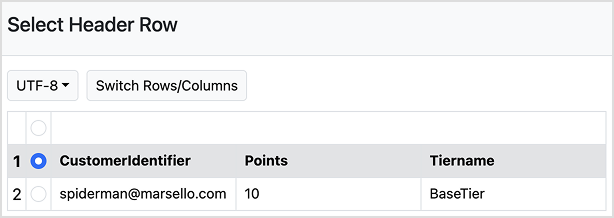
8. Confirm the header row.
-
Ensure the first row contains your column headers (e.g., First Name, Last Name, [your identifier], Points Balance).
-
Select the header row and click Next.
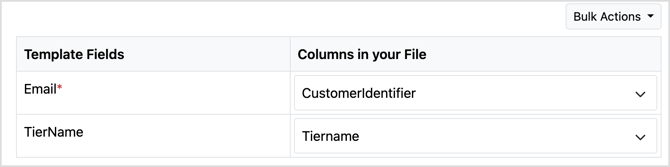
9. Map your columns to the correct Marsello fields, then click Next.
-
Match each CSV column to the correct Marsello field.
-
Use the dropdown menus to adjust mappings if needed.
-
Click Next.
10. Verify your data — fix errors in-app using the Invalid tab, or export, fix offline, and re-upload.
-
Check that all details are in the correct fields (e.g., first names in First Name, valid emails in Email).
-
Fix any errors in-app within the table or offline by selecting export.
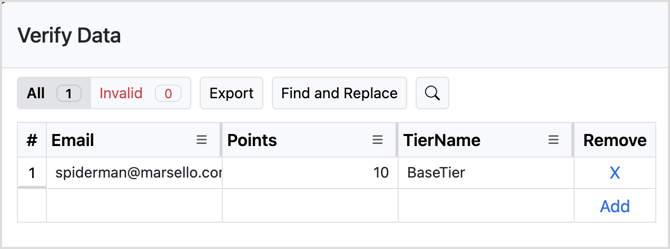
Fix errors in-app
-
Use the Invalid tab to quickly find issues in-app. Any row that has an error in it will appear in red. Here you will be able to click into the field with the error and make the update.
Fix errors via export
-
Click export to download your data as an xlsx file. Within your downloaded file, any row that has an error in it will appear in red. You will be able to hover over the row to see a detailed description of the error.
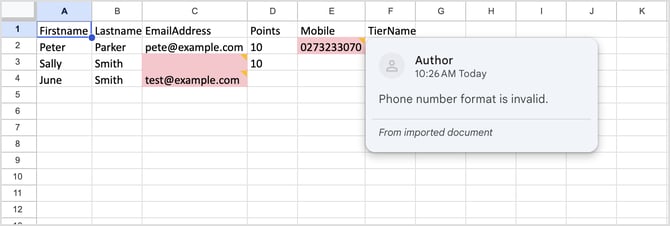
💡Quick Tip: Use Excel or upload your file into Google Sheets to filter by color in each column to show invalid rows only. Click into each field with the error and make the update.
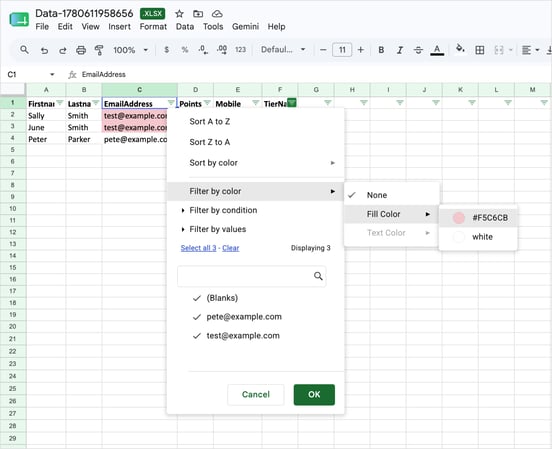
- When your file is ready, close the previous import and upload your new file. Complete the upload and mapping steps. This will allow you to cleanly import your updated file.
⚠️ Important: Common invalid row causes
-
Blank rows
-
First name doesn’t start with a letter or contains symbols (#$^&)
-
Invalid email format
-
Mobile number not in international format (+ followed by the country code, e.g. +6427123123)
- Extra whitespaces at the end of the email or mobile number
-
File contains more than 100,000 customers (maximum limit)
-
Remove unwanted entries by clicking the X in the Remove column.
11. Review and confirm — a summary screen shows what was uploaded and mapped. Confirm to run the update.
12. Click Submit, then click Upload CSV File in the pop-up to start the import..png?width=359&height=300&name=Screenshot%202026-10-12%20at%203.00.08%20PM%20(1).png)
The update runs in the background and may take up to 24 hours, depending on the size of your file. When it’s finished, you’ll receive an import report by email listing any rows that failed and why.
A row fails if it doesn’t match an existing customer, or if it matches more than one customer.
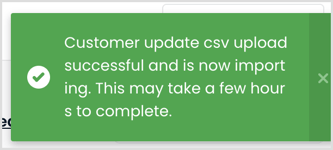
⏳ Imports may take up to 24 hours, depending on file size.
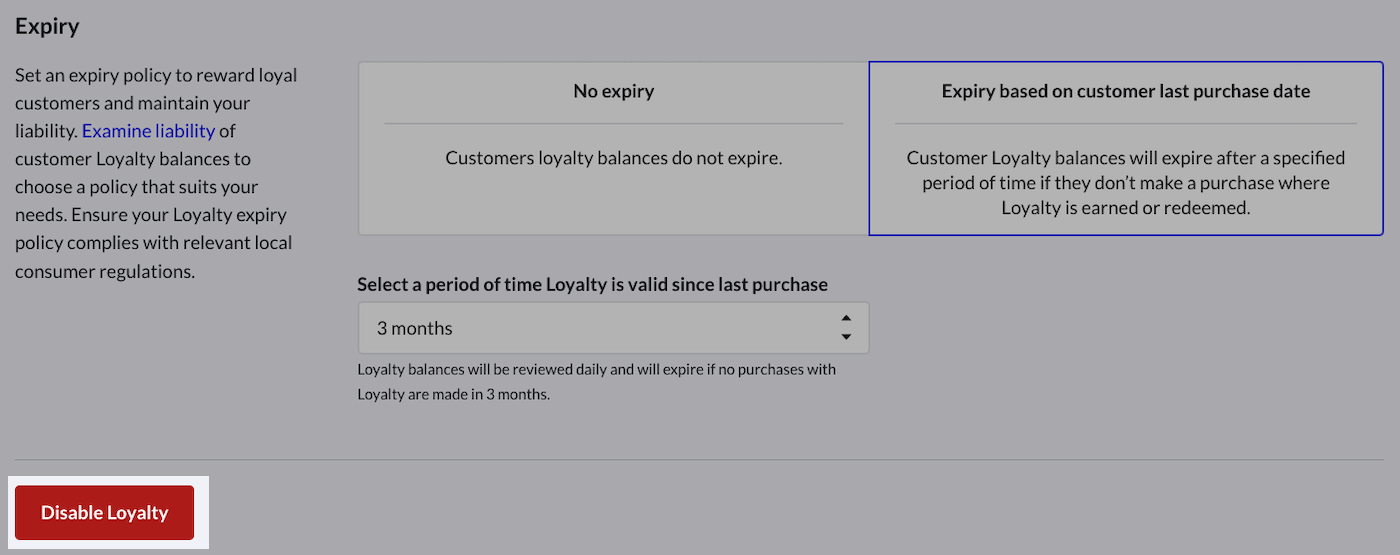
How Do I Turn Off Lightspeed Loyalty?
When you are ready to make the switch and use Marsello's loyalty program. Remember to disable your Lightspeed Loyalty Program, otherwise, you may end up rewarding your customers for their purchase twice.
-
Head to Setup > Loyalty
-
Select Disable Loyalty