-1.svg)
Applies to: Cin7 Omni
This guide is specific to the Cin7 Omni POS integration.
How to connect Cin7 Omni to Marsello?
Step-by-step guide to connect Marsello and Cin7 Omni
April 3, 2026
For Cin7 Omni merchants
(Formerly known as Cin7 POS)
By integrating your loyalty program with your Lightspeed Retail (X-Series) point-of-sale platform, you gain access to valuable insights into customer purchases, preferences, and behaviors. This empowers you to foster customer relationships and pinpoint valuable opportunities for targeted marketing to grow sales.
You can connect Cin7 Omni to Marsello in two ways:
Before you get started
Here are some key details to note about connecting Cin7 Omni's API to Marsello:
-
For optimal performance, Marsello requires an exclusive API Connection.
-
This is to ensure that your customers, orders, and products are processed in real-time as much as possible.
-
-
If you have another App using your API key, please reach out to Cin7 Omni to ask for another API Connection for Marsello.
-
Cin7 Omni API has an interaction limit, so if you have more than one 3rd party app using the same API connection this may cause data syncing delays.
How do I connect Cin 7 Omni POS to Marsello during sign-up?
Getting started with Marsello is quick—connect your Cin7 Omni POS during the sign-up process.
1. From Marsello's website, select the Start a free trial button.
2. Follow the prompts to enter your brand's details and click Continue.

3. From the Connect a sales platform step, select Cin7 Omni POS.
4. If required, confirm the authorization of the connection between Marsello and Cin7 Omni POS. Click Confirm.
5. This will form the connection between Cin 7 Omni and Marsello. Click Continue.
6. Select the Marsello subscription that works best for your brand. Click Start free trial.

Your orders and customers will now begin to sync through to your Marsello account 🎉
Cin7 Omni POS will now display in your Marsello app admin under the Integrations page, including any POS sites listed on your CIn7 Omni account.
⚠️ Important: Please review your enabled Cin 7 Omni site(s) and disable any sites that are not currently in use.
How do I connect Cin7 Omni POS to Marsello from my Marsello dashboard?
If you didn’t connect your Cin7 Omni POS during sign-up, you can still do so anytime from the Marsello dashboard. Follow the steps below to connect directly from your POS and eCommerce settings within Marsello.
1. From your Marsello dashboard, go to Settings > Connections > Sales platforms
2. Click Connect sales platform

3. Next to Cin 7 Omni POS, click Connect

From the POS & integrations page
1 Click Connect sales platform

3. After clicking connect, you will be prompted to enter a few more details to complete your Cin7 Omni connection. You will need to add:
-
Your Cin7 Omni API Username
-
Your Cin7 Omni API Key

How to find your Cin7 Omni API details
1. In your Cin7 Omni admin, go to the Settings section
2. Under Settings, click Integrations & API

3. Under Configure your integrations, click API v1
4. Next to API Username, copy your API Username

5. In the Marsello pop-up, next to API username, paste your Cin7 Omni API Username.

6. In Cin7 Omni, add an API Connection to access your new API Key or if you are repurposing an API connection, you'll need to regenerate your API Key.
📖 Learn more: For more information on API connections please see Cin7 Omni's API V1 help center article or contact their Support team for more details about API connections. Before repurposing a current API key, please ensure that you are happy to disconnect the 3rd party that may be currently using this API connection.
7. Copy your Cin7 Omni API Key

8. In the Marsello pop-up, next to API Key, paste your Cin7 Omni API Key

Update your Cin7 Omni API Key permissions
9. In Cin7 Omni, next to your API connection, click Permissions

10. Please check/update your API key permissions to match the permissions selected below:
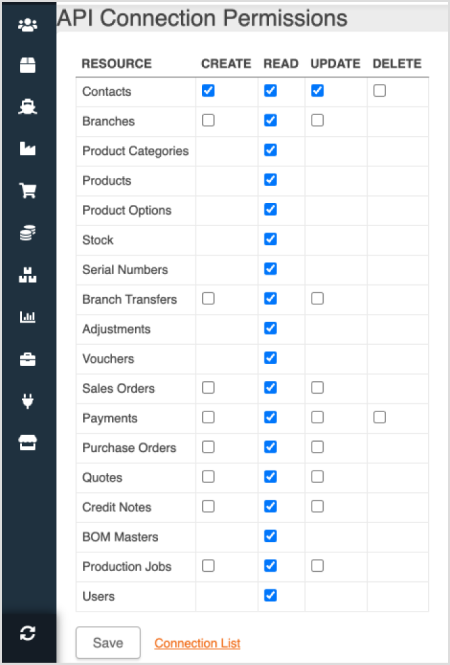
11. Click Save

How to create a 'Marsello Discount' Product in Cin7 Omni
1. In your Cin7 Omni admin, go to Products
2. Click Create New Product

3. Next to Product Name, please enter 'Marsello Discount'

4. Next to Stock Control, please select Non-Stock

5. Click Save & Continue
6. In the URL bar, please copy your entire Product URL

7. In your Marsello admin, in the Complete your Cin7 Omni connection pop-up enter your entire Product URL.

8. Click Authenticate
When you click Authenticate, Marsello will start the initial customer sync and link your Cin7 Omni 'Marsello Discount' product to your Marsello account.
-
Initial customer sync: Marsello will use your API to sync all of your customers in your Cin7 Omni database into your Marsello database. Please note: This can take 1-3 days depending on the size of your database.
-
Link your Cin7 Omni 'Marsello Discount' product: You'll now be able to create loyalty rewards and email discounts that your staff will be able to redeem for customers at Cin7 Omni POS
9. Cin7 Omni will now display in your Marsello app admin under the Integrations page.
