-1.svg)
Cin7 Omni POS: Staff Training — Adding Customers, Awarding Points & Redeeming Rewards
Step-by-step training for adding customers, awarding points, and redeeming rewards at Cin7 Omni POS. Rewards now apply as a discount on the product line, not the order total.
Updated: September 29, 2026
Applies to: Cin7 Omni
This guide is specific to the Cin7 Omni POS integration.
Before you start
Ensure that the following installation steps have been completed:
-
Your POS sites are enabled under the Integrations page
-
You are using Google Chrome browser to access Cin7 Omni POS
-
You have installed the Marsello Chrome Extension on every desktop you use to access the Cin7 Omni POS in-store.
Add a new customer to your customer database
To add a new customer to your Marsello customer database, all you need to do is add the new customer to the sale in Cin7 Omni POS on your desktop.
1. Add the customer's products that they want to buy to the sale.
2. In the sale screen's Customer section, click New
-2.png?width=502&height=350&name=Group+1+(34)-2.png)
3. Add your new customer's details:
-
First Name
-
Last Name
-
Email Address (required)
-
Mobile number
+1-1.png)
📝 Note:
-
Only First Name, Last Name, and Email are required for adding customers to your Marsello database. Email address is the unique identifier that is used to match customer profiles with any other sales channels you have connected e.g. Shopify eCommerce, WooCommerce etc.
-
Mobile number: When collecting mobile numbers, please include the country code and avoid any additional formatting like spaces, brackets, or hyphens.
Capture customer's marketing opt-in preference
🏷️ SMS features vary by Marsello plan
- Loyalty Launch + SMS add-on: Unlocks loyalty automations via SMS and SMS campaigns
- Loyalty Accelerate + SMS add-on: Unlocks advanced automations via SMS and SMS campaigns
🏷️ Email campaigns and automations for marketing are available with the Marketing add-on.
When a new customer makes an in-store purchase, it's important that staff ask if they want to join their database and receive marketing via email and SMS.
⚠️ Important: By default, customers do not accept marketing, and they must opt-in to receive marketing through Marsello. You must have the Marsello Chrome extension to update the customer's marketing preference.
4. At the top of the New Customer page, next to the Save and Enter to POS button you can use the Accepts Marketing toggle to indicate the customer's marketing preferences.
-
If they accept marketing via email and SMS: Set the toggle to ON
The customer will be able to receive store emails and SMS marketing via Marsello.
-2.png)
-
If they don't accept marketing via email and SMS: Ensure the toggle is set to OFF.
The customer will not receive store emails or SMS marketing via Marsello.
-3.png)
5. Click Save & Enter to POS, the customer will then be added to the sale
+1-1.png)
6. Complete the sale.
The customer will be automatically added to your Marsello customer database, including their details, accepts marketing preference, and sales data.
Award loyalty points for in-store purchases
For customers to earn loyalty points for their purchase, simply add the customer to the sale in Cin7 Omni POS.
1. Add the customer's products that they want to buy to the sale.
2. Add your customer to the sale by searching for them by name, email address or mobile number.
3. Click on their name to add them to the current sale.
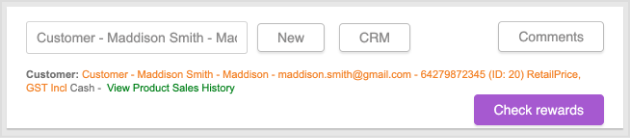
📝 Note: If the customer is not part of your database yet, tap + Add a new customer to create their customer profile. Follow these steps.
4. Complete the sale. When the sale is complete, the customer will automatically receive their loyalty points.
Redeem rewards during the sale
You can redeem available loyalty rewards and email discounts easily from the sales screen.
1. Add the customer's products that they want to buy to the sale.
2. Add your customer to the sale by searching for them by name, email address, or mobile number.
3. Click on their name to add them to the current sale.
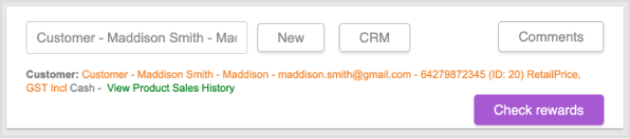
4. Under their profile, click the Check Rewards button.
-3.png)
This will open the customer's loyalty profile, here you can view the loyalty reward(s) or email discount(s) they have available.
📝 Note: To open the loyalty profile and access the Check Rewards button, the customer profile must contain a valid email address. Marsello uses the email address as a unique identifier for this purpose.
5. Click Redeem next to the reward.
-2.png)
The discount is applied to the product lines on the sale: you'll see it in each line's Total Discount column and in the Discount row of the totals panel, and the amount to pay drops by the reward. A Marsello Discount [code] line is also added at $0.00. That line is only a label showing which reward was used; it has no price or quantity and does not affect the total.
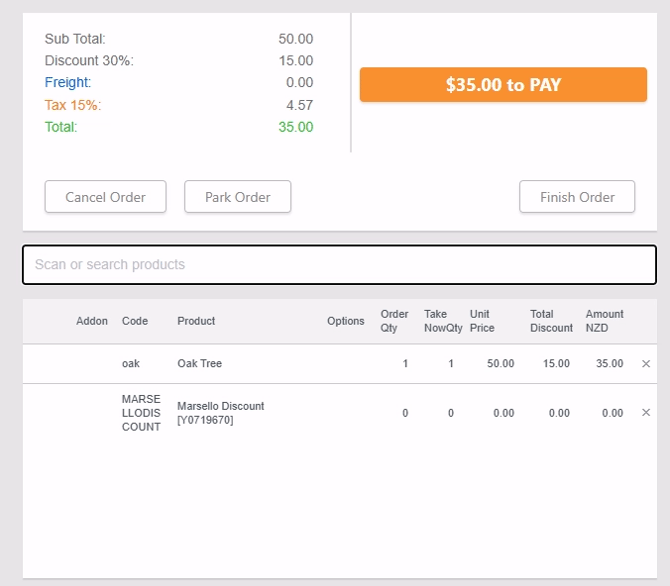
If the customer changes their mind before paying, delete the Marsello Discount line using its × button. The discount comes off the product lines and the reward goes straight back to the customer's account.
If the sale has already been paid, or the reward doesn't fully cover the sale, or you're not sure how to handle a specific situation, see Cin7 Omni: Common questions and How to Process Returns with Marsello Discounts in Cin7 Omni POS.
⚠️ Important:
-
Select the customer before applying any manual discounts, because Cin7 clears manual discounts when a customer is added to a sale.
-
Do not type a price or quantity into the Marsello Discount line.
- Rewards can't be applied to products on an active Cin7 promotion. If every product on the sale is on a promotion, you'll see a message and no points are spent. If only some are, the reward goes on the other products.
- For promotions starting mid-sale, i you add more of a product after redeeming and a Cin7 quantity promotion kicks in, the reward drops off that sale but the points stay used. You'll see the Marsello Discount line still naming an amount that isn't on the sale. Delete the Marsello Discount line to give the points back, then redeem again.
-
When a customer redeems a discount as part of their order:
- Loyalty reward: the reward's points cost is deducted from their balance.
- Email discount: the discount code is invalidated to prevent further use.
6. Complete the sale. The customer earns points on the amount they paid after the reward.
Your customers' experience
The experience differs mainly in what happens to the customer's profile — not in how points are earned.
New Customers
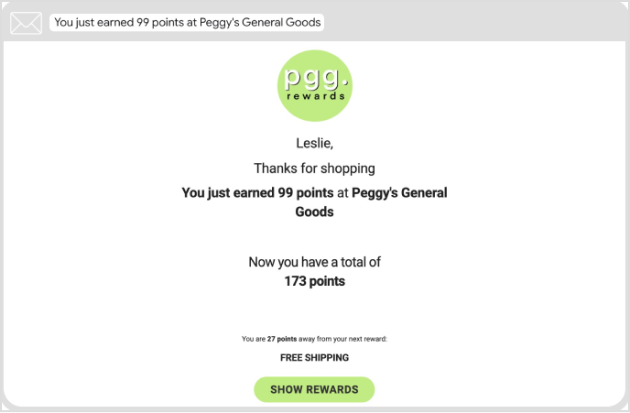
When you complete the sale, the customer is added to your loyalty program and Marsello customer database. Along with their purchase, they automatically earn loyalty points, and if you have the "Earned Points" email notification enabled, they will receive an email notifying them about the points they've earned, their updated loyalty points balance, and the number of points required to reach their next reward.
Plus, if the customer accepts marketing, they become eligible to receive your upcoming marketing campaigns and automation, providing a better engagement experience.
Existing Customers
When you complete the sale, they automatically earn loyalty points, and if you have the "Earned Points Email" feature turned on, they will automatically receive an email notifying them of the points they've earned for their recent purchase and the number of points required to reach their next reward.
Encouraging your staff to prompt customers to use their rewards at the point of sale creates a positive and delightful experience for customers, leaving them pleasantly surprised and fostering stronger customer loyalty.
Points earned email example