-1.svg)
How do I connect Lightspeed Retail (R-Series) POS to Marsello?
Step-by-step guide to connect Marsello and Lightspeed Retail (R-Series) POS
April 3, 2026
Applies to: Lightspeed Retail (R-Series) POS
This guide is specific to the Lightspeed Retail (R-Series) POS integration.
Connect your Lightspeed Retail (R-Series) POS to Marsello to sync customer and order data. This allows you to power loyalty, marketing, and customer insights from your sales activity.
You can connect Lightspeed Retail (R-Series) in two ways:
⚠️Important: To connect Marsello on Lightspeed Retail (R-Series) POS, you must have the "Owner" role with all permissions enabled in Lightspeed.
Before you start
To connect Lightspeed Retail (R-Series), you must:
-
Have the Owner role in Lightspeed
-
Enable Read and write access to all records
❓Not sure of your role? Follow the steps below to check.
-
While logged into your Lightspeed Retail (R-Series) dashboard, go to in R-Series under Settings > Advanced Setup > Client API Access
-1.png?width=490&height=450&name=Group-2B1-2B--2B2024-11-20T143326_041%20(1)-1.png)
-1.png)
-
Under the CLIENT menu, click Marsello.
-
Under the Refresh Tokens section, click on your account.
- Confirm the status on your account under the Employee field. If this field is blank, you have an Owner role.
How do I connect Lightspeed Retail (R-Series) POS to Marsello during signup?
Getting started with Marsello is quick - connect your Lightspeed Retail (R-Series) POS during the signup process.
1. From Marsello's website, select the Start a free trial button.
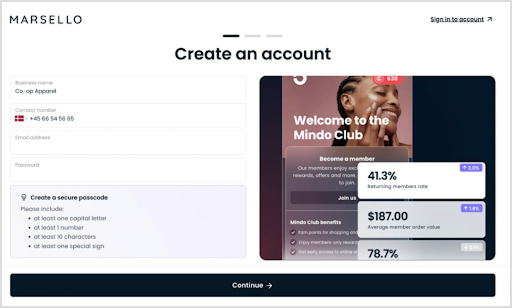
2. Follow the prompts to enter your brand's details and click Continue.
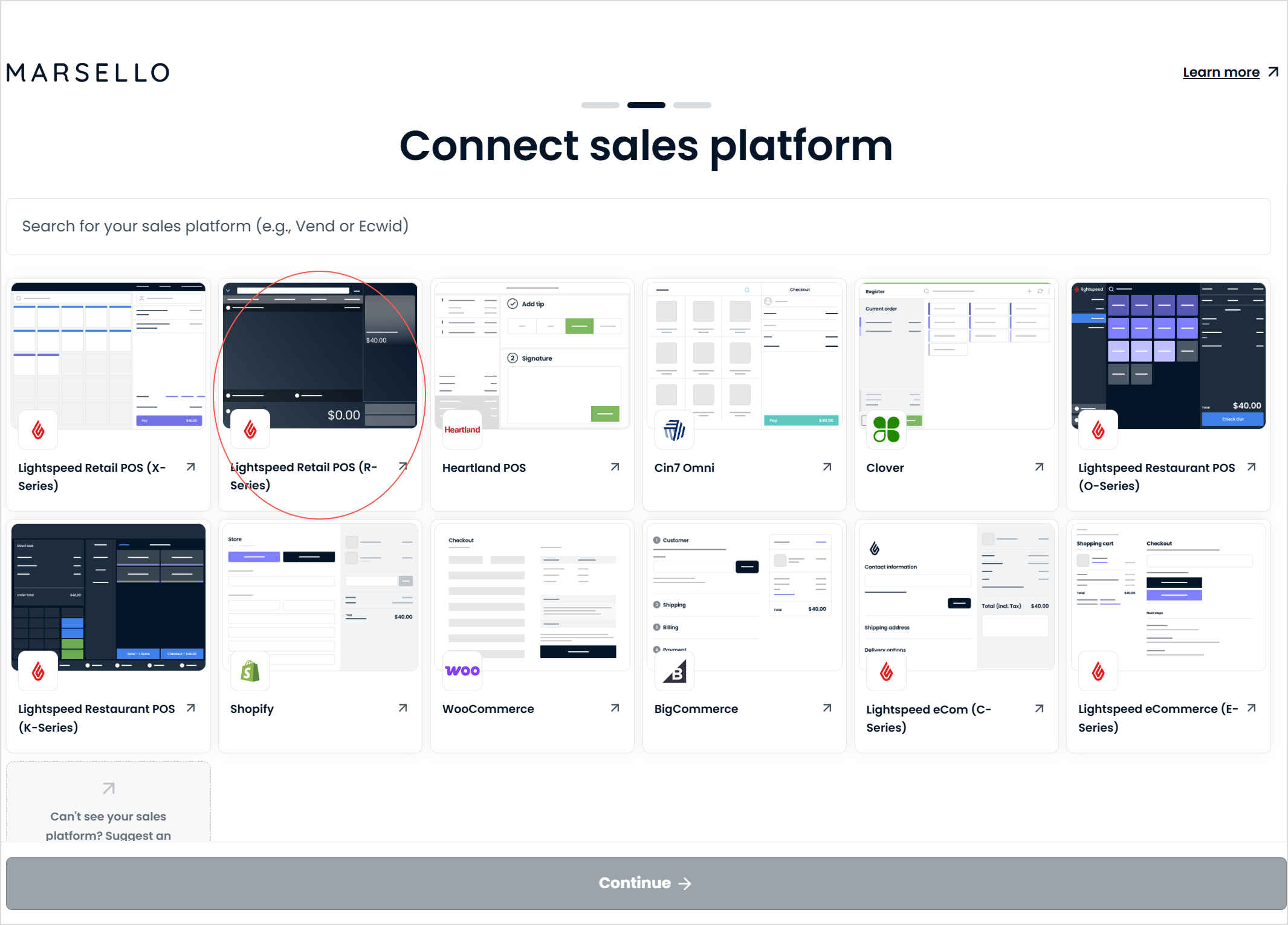
3. From the Connect a sales platform step, select Lightspeed Retail POS (R-Series).
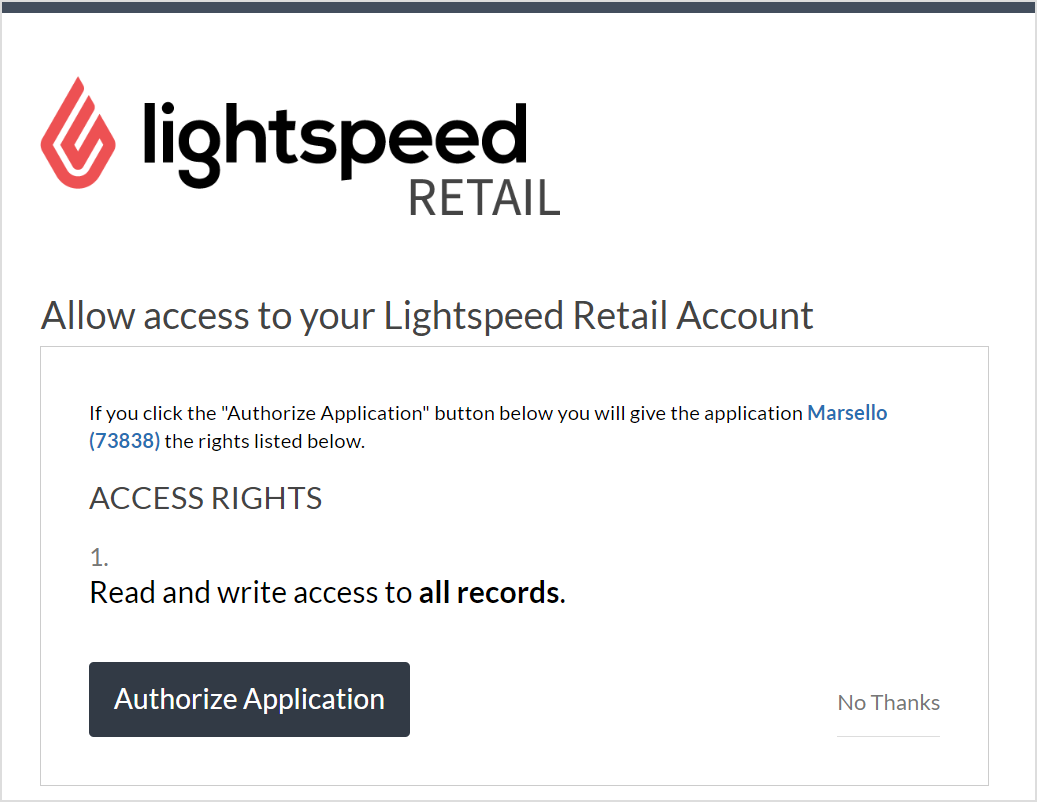
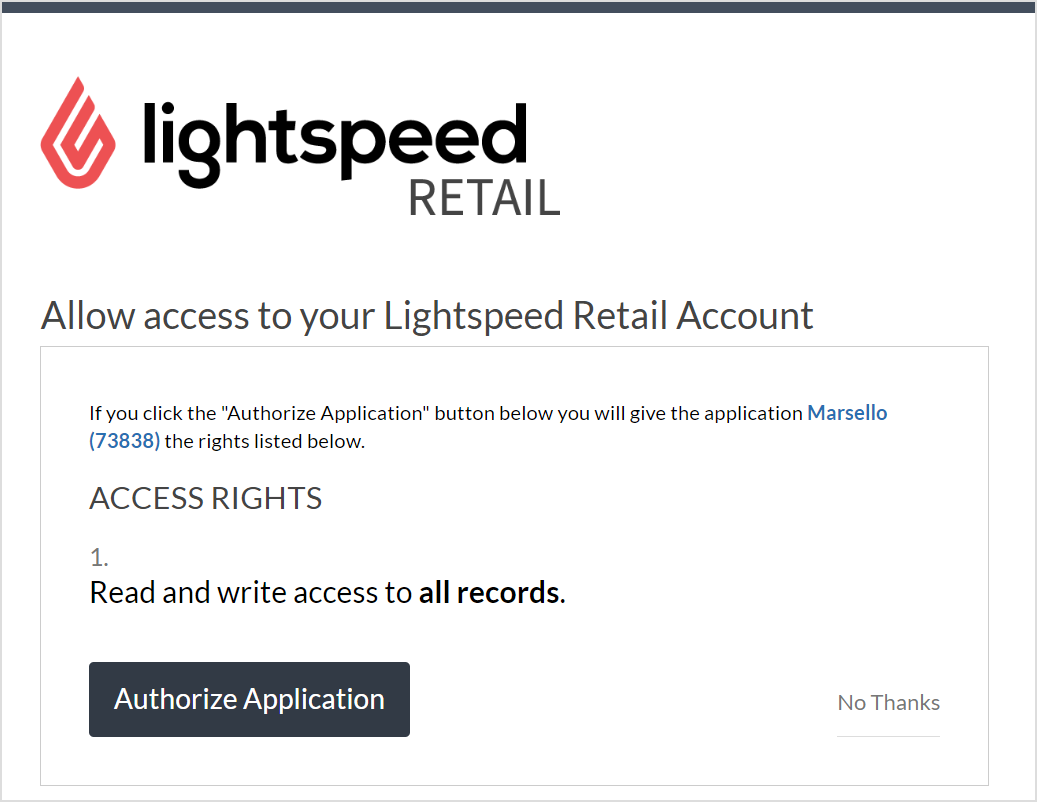
4. Click Authorize Application to authorize the connection between Marsello and Lightspeed Retail (R-Series) POS.
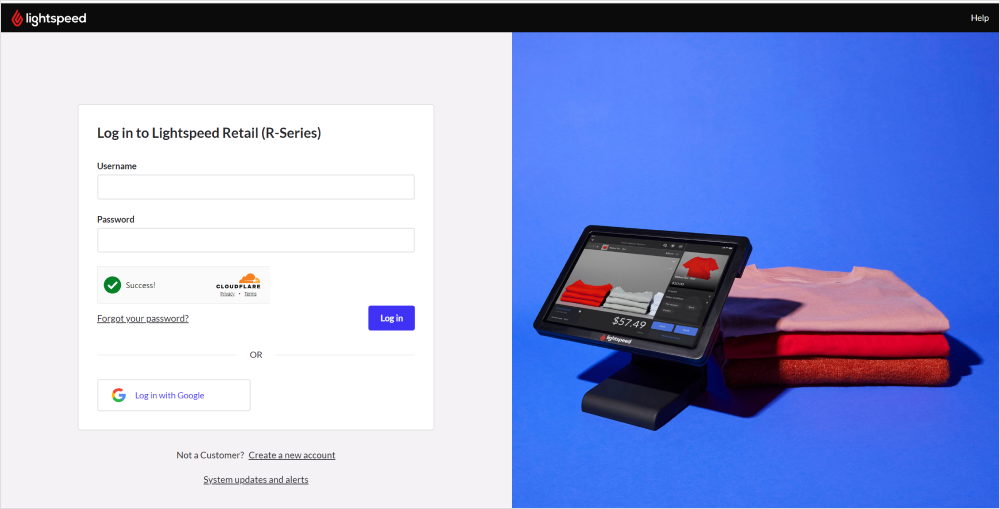
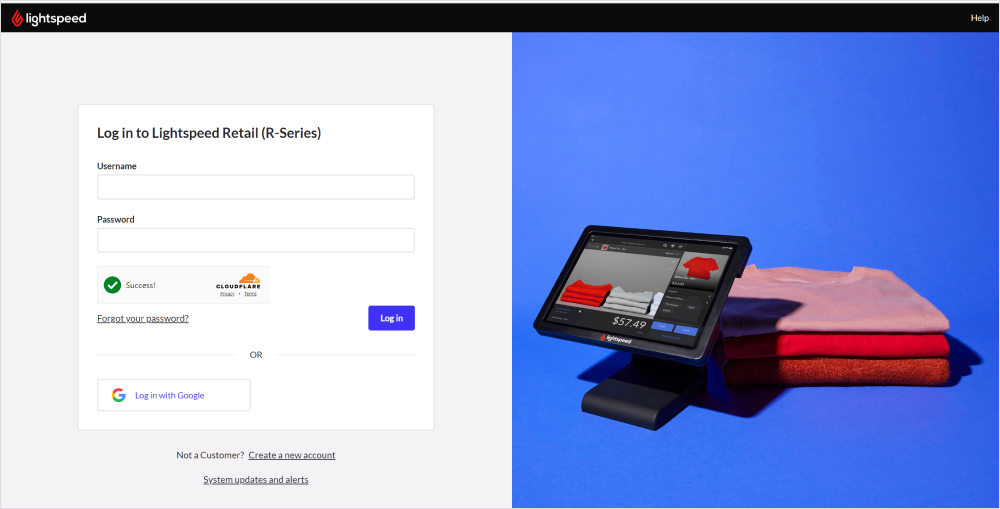
📝 Note: You will be prompted to log in to your R-Series account if you are not already logged in.
4. This will form the connection between Lightspeed Retail (R-Series) POS and Marsello.
Your orders and customers will now sync through to your Marsello account 🎉
Lightspeed Retail (R-Series) POS will now display in your Marsello app admin under the Integrations page; including any POS and eCommerce sites listed on your Lightspeed account.

⚠️ Important: Please review your enabled Lightspeed site(s), and disable any sites or any not currently in use.
How do I connect Lightspeed Retail (R-Series) POS to Marsello from my Marsello dashboard?
If you didn’t connect your Lightspeed Retail (R-Series) POS during sign-up, you can still do so anytime from the Marsello dashboard. Follow the steps below to connect directly from your POS and eCommerce settings within Marsello.
1. From your Marsello dashboard, go to Settings > Connections > Sales platforms
2. Click Connect sales platform

3. Next to Lightspeed Retail (R-Series) POS, click Connect
-1-1.png)
4. Click Authorize Application to authorize the connection between Marsello and Lightspeed Retail (R-Series) POS.
📝 Note: You will be prompted to log in to your R-Series account if you are not already logged in.
4. This will form the connection between Lightspeed Retail (R-Series) POS and Marsello.
Your orders and customers will now sync through to your Marsello account 🎉
Lightspeed Retail (R-Series) POS will now display in your Marsello app admin under the Integrations page; including any POS and eCommerce sites listed on your Lightspeed account.

⚠️ Important: Please review your enabled Lightspeed site(s), and disable any sites or any not currently in use.
Brands also searched for: kiosk