-1.svg)
Customer portal: Introduction
Set up your branded Customer Portal so customers can join your loyalty program, earn and redeem points, and choose their marketing preferences.
February 20, 2026🏷️ The Customer portal is available on all Marsello pricing plans.
Welcome to the Customer Portal — your branded loyalty hub where customers can sign up, log in, earn points, redeem rewards, and access exclusive offers.
This guide covers:
-
Customizing your Customer Portal
- Collecting marketing consent
- Promoting your loyalty program
-
Understanding the customer experience
-
Differences between eCommerce, POS-only, and Omnichannel setups
⚽️ Heads up: Marsello will soon transition all retailers from the legacy online widget and in-store portal to the new Customer Portal.
This upgrade will:
-
Improve user experience
-
Streamline operations
Unlock more advanced features
Customizing your customer portal
Create a loyalty experience that feels like a natural extension of your brand.
🎨 Brand customization
You can customize:
-
Logo
-
Colors
-
Fonts
-
Button styles and corners
-
Imagery
-
Text content
This ensures your loyalty program matches your store’s branding.

🍎 Apple Wallet branding
Your logo and brand styling can also be applied to your Apple Wallet membership card, creating a consistent brand experience across channels.
Tailor content for maximum engagement
You can tailor what customers see inside the portal, including:
-
Welcome text
-
Feature cards
-
Images
-
Custom links (store location, Google reviews, booking links, etc.)
-
Merge tags for personalization
- The "Stay in the loop" block on the home screen
- The marketing consent pop-up text
This helps you drive engagement and align messaging with your brand voice.
📖 Step-by-step guide: Updating your customer portal brand settings.
🔒 Collecting marketing consent
Customers now give marketing consent on purpose, with separate choices for email and SMS. Creating a portal account or signing in doesn't subscribe anyone to marketing.
You can control:
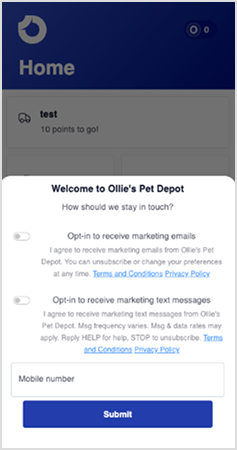
- Marketing consent pop-up: Edit the text customers see the first time they sign in.
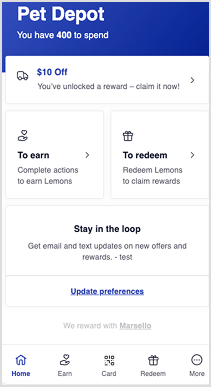
- "Stay in the loop" block: Turn it on or off, and edit its text. It's on by default for new customer portals and off by default for existing ones.
- Disclosure text and legal links: Edit your email and SMS disclosure text, and add your Privacy Policy and Terms & Conditions links, in Settings > Compliance > Marketing compliance.
📖 Step-by-step guide: Marketing compliance opt-in
Promoting your loyalty program
Your Customer Portal can be promoted across multiple channels.
⚠️ Important: Displayed settings may vary based on your business sales platform connections—whether you’re an eCommerce-only, POS-only, or Omnichannel retailer, Marsello caters to all 😊
Use your loyalty program link:
-
Add it as a button in email campaigns
-
Embed it in a QR code (receipts, menus, posters, business cards)
-
Share it in social media posts or your bio
-
Include it in your email signature
-
Add banners or launchers on your website
Effortless promotion across all channels
Promotion for Omnichannel merchants with eCommerce and POS connection, or eCommerce–only
-
Unique loyalty program link
For retailers with an eCommerce store, you can simply add /?loyal to your online store domain to create your own unique loyalty program link for your business.
Available for retailers with Shopify eCommerce & Lightspeed C-Series installed.
Coming soon for Lightspeed E-Series, WooCommerce and BigCommerce!
-
Online store launcher
You can also choose to have a launcher available to all, prompting customers to open and engage with your loyalty program—encouraging new visitors to explore and existing customers to stay connected.
Promotion for merchants with a POS–only connection
-
Domain
For retailers with physical locations only, you can use your customer portal domain to create your own unique loyalty program link for your business. By default, this will be your business name.
Your customer loyalty journey – How it all works
Visitor experience: Inspiring sign-ups
When visitors enter your customer portal, they'll discover the benefits of joining your program. Signing up is simple:
-
Omnichannel or eCommerce–only connection:
Online visitors can create an online store account to access their loyalty profile giving them one single log in across your online store and loyalty profile.
-
POS–only connections:
In-store visitors can create an account to access their loyalty profile using their Gmail, Facebook, or Apple accounts, alternatively, they can use an email magic link. Single sign-on (SSO) makes it easy for customers to avoid remembering another password.
📝 Note: Creating a portal account or signing in only collects the customer's email address. It doesn't subscribe them to email or SMS marketing.
Customer experience: Encouraging engagement and sales
Once logged in, customers can view their points balance, available rewards, and more ways to engage with your loyalty program. From earning points to checking rewards and referring friends, the possibilities for engagement are endless.
-
ACTION: Choosing their marketing preferences
The first time customers sign in, a pop-up asks if they'd like to hear from you. Email and SMS have separate checkboxes, and both start unticked. Your disclosure text shows next to each checkbox.
Customers can change their choices at any time in their marketing preferences. If you've turned on the "Stay in the loop" block, it shows on their home screen and links straight to their marketing preferences.
-
ACTION: Earning Points Toward Rewards
Customers can effortlessly view and complete tasks to earn points from their phone or desktop, making it easy for them to engage with key actions that personalize their experience or advocate for your business, all while earning points towards their next reward.
-
ACTION: Claiming a Reward
Once customers accumulate enough points, they can easily claim rewards through the 'Redeem' menu item. Reminders on their home screen will help ensure they use their rewards before they expire, so they never miss out.
-
ACTION: Save their Digital Membership Card to their Apple Wallet
Customers can save their digital membership card directly to Apple Wallet, simplifying the checkout process. They simply present their card for scanning at the point of sale, seamlessly integrating with their transaction.
For non-Apple users, they can save their customer portal as an app on their smartphone’s home page using the provided instructions. This gives them easy access to their digital membership card directly from their customer portal.