-1.svg)
Customer portal: Content settings
Manage your customer portal content settings with ease. Customize preferences for a personalized experience.
Updated this week
🏷️ The Customer portal is available on all Marsello pricing plans.
Welcome to the Customer Portal—a centralized hub where customers can sign up or log in to access their personalized loyalty profiles. Here, they can earn points, redeem rewards, and access exclusive discount codes delivered through email marketing.
📖 Learn more about the Customer Portal.
⚽️ Heads up: Marsello will be transitioning all retailers from the legacy online widget and in-store portal to the new Customer Portal by soon. This change aims to enhance user experience, streamline operations, and provide more robust features for your business. Stay tuned for further updates as we make this exciting shift!
Customer portal: Content settings
Customize your customer portal to match your brand, creating a personalized and inviting space for customers to engage with your loyalty program.
1. In your Marsello admin, go to Customer experience
2. Under Personal device click Customer Portal > Brand > Customer portal content
These settings determine the imagery, voice and tone of your customer portal.

🖌 Any customization or changes you make will automatically update in real-time on the preview, giving you the chance to ensure it aligns with your preferences before finalizing.
🚀 When you're ready, click Save & Publish to update your live customer portal.
Icons
Add a touch of fun and personality to your customer portal by choosing whether to display or hide icons across various pages.
Here you can choose to display or hide icons.
3. Click the ON/OFF toggle to show or hide the following icon groups:
Earn icons
-
Visible on:
-
Earn page — Visitor & Customer views
-
Home page — Visitor & Customer views
-
Activity page — Customer view
-
Icons ON example
-
Icons are displayed throughout the loyalty experience to help highlight actions and rewards.
Icons OFF example
-
Icons are hidden for a cleaner, more minimal appearance.
Redeem icons
Visible on:
-
Redeem page — Visitor & Customer views
-
Home page — Visitor & Customer views
-
Activity page — Customer view
Icons ON Example
-
Reward and redemption icons are displayed to improve visual navigation and engagement.
Icons OFF Example
-
Icons are removed for a simplified loyalty portal layout.
VIP tier icons
Visible on:
-
Home page — Visitor & Customer views
-
VIP Tier pages — Visitor & Customer views
-
Earn page — Visitor & Customer views
-
Redeem page — Visitor & Customer views
-
Activity page — Customer view
Icons ON Example
-
VIP tier icons appear throughout the loyalty portal to visually highlight tier status and benefits.
Icons OFF Example
-
VIP tier icons are hidden while keeping all tier information visible.
Launcher icons
Visible on:
-
Launcher — Visitor & Customer views
Icons ON example
-
Launcher icons are displayed to help customers quickly identify loyalty features.
Icons OFF example
-
Launcher icons are hidden for a more streamlined launcher appearance.
📝 Note: The ability to upload your own icons is currently a feature request. If this is important to you, please let our support team know.
Digital Membership Card
The digital membership card is a unique QR code acting as a digital membership card. iPhone users can add it to Apple Wallet for easy access. Scan in-store to quickly link customers to sales.
1. Click the ON/OFF toggle to show or hide the digital membership card:
Visible pages
-
Main bottom navigation "Card"
Card ON example
Card OFF example
Reward claim in-store page
Card ON example
Card OFF example
Without the card this page doesn't exist. Only the 'online' code screen will display.
Home Page Components
Home page components let you create a personalized landing page to inform customers about your loyalty program, drive sign-ups, and boost engagement.
📝Note: All of the text included in the home page components can be customized to suit your voice and tone in the next section: Wording.
How to update your home page:
5. Select the user's state to customize the home page, either Visitor or Customer
6. Toggle the card options ON/OFF to personalize your customer portal experience
7. For 'Visitor > Join' card & 'Customer > Program card' you can also select what card layout you prefer. Choose from a simple layout and a list of benefits layout
What it changes
Visitors:
-
Join card (required): Encourage sign-ups using an immediate call to action
-
Simple: Card with a brief description and join call-to-action button
-
Benefits: Card with brief description, call-to-action button and list of 3 benefits the customer will receive by signing up for your program
-
-
Program card: Earn & Redeem buttons to encourage visitors to click through to see the ways they can earn and redeem loyalty points.
-
VIP Tiers card: Inspire sign-ups with enticing tier benefits.
-
Referral card: Incentivise sign-ups with additional referral perks.
📝 Note: Joining your loyalty program doesn't subscribe customers to marketing. They choose email and SMS marketing in a pop-up the first time they sign in.
8. For Customer, you can choose to keep the customer's upcoming reward on display and as well as select from a few program card layouts.
What it changes
Customers
-
Upcoming reward card: Increase redemption by highlighting an upcoming reward or the reward discount code they currently have available
-
Program card(s): Drive action with additional loyalty program details
-
Earn & Redeem buttons to encourage visitors to click through to see the ways they can earn and redeem loyalty points.
-
Earn list: List all earn options on the home screen
-
Redeem list: List all available rewards on the home screen
-
-
VIP tiers card: Highlight tier status and create aspiration to move up
-
Referral card: Incentivise customers to refer their friends
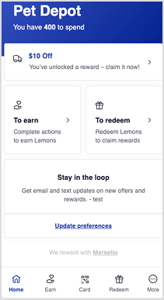
- Stay in the loop block: Invite customers to sign up for email and SMS marketing. The block links straight to their marketing preferences. It's on by default for new customer portals and off by default for existing ones.
More page links
The 'More' page is a secondary hub for key links, enhancing engagement and community. Add custom links like store locations, Google reviews, or booking options.
9. Click the ON/OFF toggle to open the custom link settings
10. Add a 'title' that will display to your visitors & customers
11. Paste your desired URL
12. Repeat the above steps for the number of links you'd like to add
💡 Custom link ideas:
-
Our Stores: Add a link to your Google Maps locations so customers can easily see where your stores are located and get directions.
-
Online Ordering: Add a link to your online ordering page to provide customers with a convenient way to browse and purchase your products.
-
Make a Booking: Add a link to your online booking website to make it easy for customers to schedule an appointment.
-
Upcoming Event: Add a link to your event page to keep customers informed about upcoming events and encourage their participation.
-
Google Reviews or Yelp Reviews: Add a link to your preferred review platform’s survey form, making it easy for customers to leave a rating for your store.
-
Latest News: Add a link to your news or blog page so customers can stay updated on your latest announcements and stories.
-
Contact Support: Add a link to your Contact Us page to simplify customer access to your support team.
Wording
You have the power to customize the content visitors and customers see in your loyalty program. Tailor your text to match your brand's voice and message, and use merge tags to personalize their experience.
How to change
12. Under Page: Click the drop-down menu and select the page you want to update.
13. Under State: Choose the user's state (Visitor or Customer) to customize the home page accordingly.
14. In the preview of the customer portal: Click on the text you'd like to edit.
-
Click the tick icon to save your changes.
-
Click the cross icon to cancel your changes.
-
Click the merge tag icon to add personalized content.
15. Repeat steps 12–14 to update the different pages of the customer portal for both visitors and customers.
📝 Note: Most text is editable. To save you time, any non-editable text is automatically pulled from your existing settings, such as reward titles and VIP tier names.
Up next 👉 Effortless promotion across all channels
Spread the word about your loyalty program across all channels, from social media to online store launcher or banners. Use your loyalty program URL to reach potential customers everywhere;
-
Add it as a button to your email template.
-
Embed it as a link behind a QR code on receipts, business cards, thank you cards, in-store posters, menus, etc.
-
Share it in your social media posts or link it in your bio.
-
Include it in your email signature.
- And more!