-1.svg)
Customer portal: Brand settings
Update colors, fonts, imagery, logos, and corners of your customer portal—the details that make it feel like your brand.
September 13, 2025
🏷️ The Customer portal is available on all Marsello pricing plans.
Welcome to the Customer Portal—a centralized hub where customers can sign up or log in to access their personalized loyalty profiles. Here, they can earn points, redeem rewards, and access exclusive discount codes delivered through email marketing.
📖 Learn more about the Customer Portal.
⚽️ Heads up: Marsello will be transitioning all retailers from the legacy online widget and in-store portal to the new Customer Portal soon. This change aims to enhance user experience, streamline operations, and provide more robust features for your business. Stay tuned for further updates as we make this exciting shift!
Below is a step-by-step guide to adding your brand elements to your Customer Portal.
Customer portal: Brand settings
You can easily make your customer portal feel like your own brand with a variety of customization options. This way, it becomes a personalized and inviting space for your customers to engage with your loyalty program.
1. In your Marsello admin, go to Customer experience
2. Under Personal device click Customer Portal > Brand
These settings determine the look and feel of your customer portal.
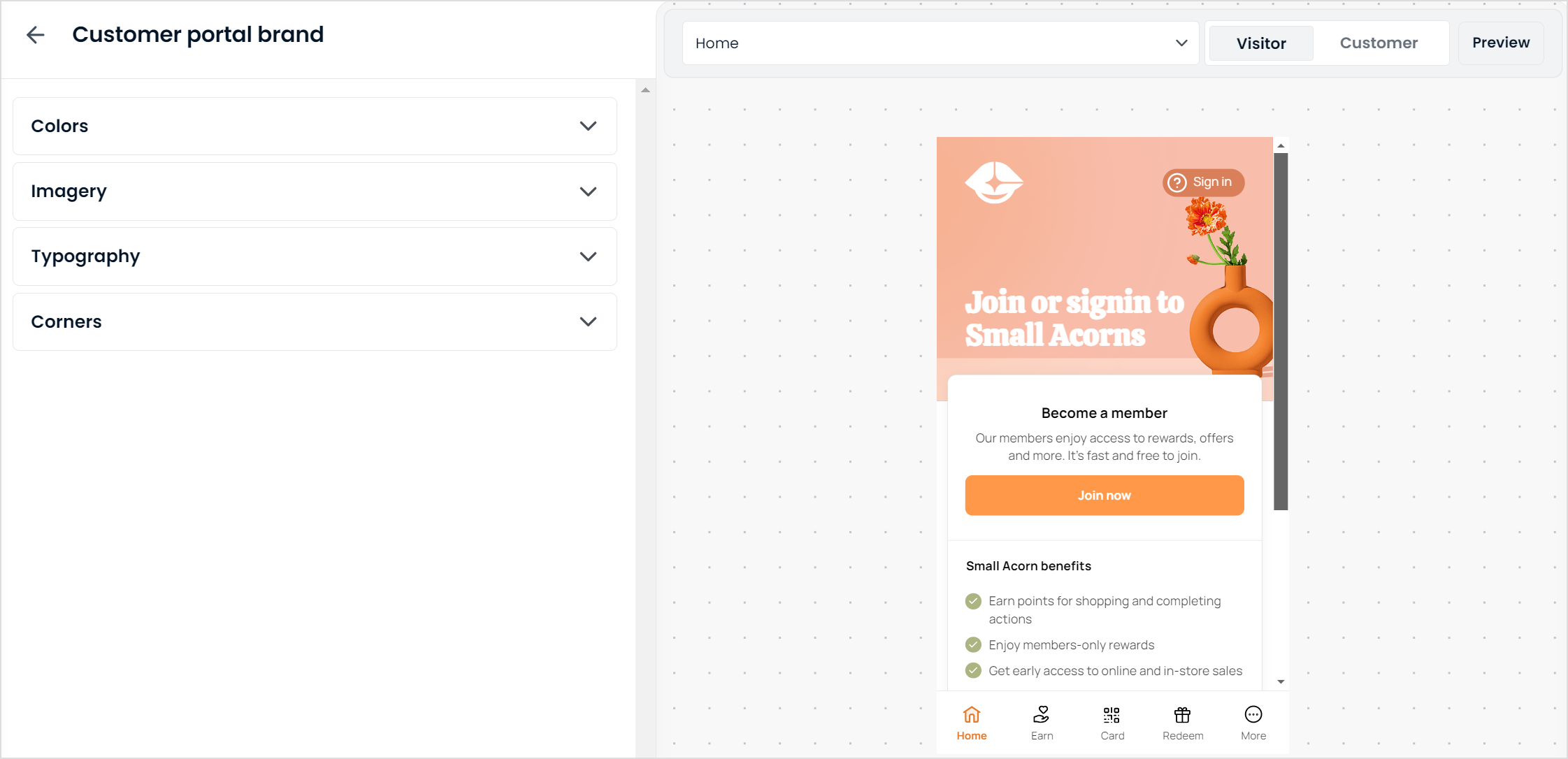
🖌Any customization or changes you make will automatically update in real-time on the preview, giving you the chance to ensure it aligns with your preferences before finalizing.
🚀 When you're ready, click Publish changes to update your live customer portal. Once published, all changes will immediately go live and be visible in the Customer Portal.
Colors
How to change:
3. Next to each option, click the drop-down to open the color picker.
4. To add your hex color code, click on "R G B" to change the input setting to "HEX" then enter your brand's HEX color code

💡 Tip: Not sure what your store's hex color codes are? You can use this HTML Color Code tool to identify your brand colors.
What it changes:
We recommend updating the following four main color settings:
-
Brand Color: Updates include:
-
Visitor View: 'Sign-in' button and gradient headings on all pages.
-
Customer View: 'Points balance' label, gradient headings, and progress indicators on all pages.
-
-
Action Color: Affects button colors, navigation menu icons, and text links in both visitor and customer views.
-
Background Color: Changes the background color of the customer portal for both visitor and customer views.
-
Font Color: Adjusts the color of sub-headings and paragraph text for both visitor and customer views.
- Stay in the loop card: Prompt customers to update their marketing preferences. Links to their marketing preferences.
📝 Note: Your brand colors, fonts, and corners also apply to the marketing consent pop-up and the "Stay in the loop" block on the home screen.
⚙️ Advanced Settings: Additional color settings (Optional) ⚙️
👉 Personalize various color elements to your preference—customize as much or as little as you like.
-
Home page banner colors: Modify the colors of the Home page heading for both Visitor & Customer views
-
Gradient start & end: This indicates the starting light color hue in the top-left corner to the ending darker color hue in the bottom right.
-
Font: This updates the heading font and smaller sign-in / points label in top right corner.
-
-
Header page colors: Modify the colors of all sub-page headings in the customer portal (e.g., Earn, Redeem, Card & More screens) for both Visitor & Customer views.
-
Gradient Start & End: Same as described above.
-
Font: Same as described above.
-
📝 Note: Any modifications made to the header page colors will not apply to the Home screen
-
Clickable elements: Modify the colors of buttons and text links that Visitors & Customers use to navigate the customer portal.
-
Background: Update the button background to make this action the obvious next step for both Visitors and Customers
-
Font: Customize the button’s font color to enhance readability
-
Focus background: Modify the hover background color for focused elements to make them stand out
-
Link: Set the color for text links to ensure they are easily identifiable and consistent with your branding
-
Focus link: Adjust the hover link color to provide clear visual feedback that the link is clickable
-
-
Indicator Colors: Modify the colors of elements that highlight key information for both Visitor & Customer views
-
Icon: Update the Earn, Reward and VIP tier icons to match your brand's colors
-
Check background: Choose the background color for bullet points to ensure they stand out
-
Check icon: Set the color of checkmarks to improve clarity and fit your design
-
Progress Start & Progress End: Define colors for the start and end of progress bars to reflect your branding
-
-
Clickable elements: Modify the colors of buttons and text links that Visitors & Customers use to navigate the customer portal.
-
Background: Update the button background to make this action the obvious next step for both Visitors and Customers
-
Font: Customize the button’s font color to enhance readability
-
Focus background: Modify the hover background color for focused elements to make them stand out
-
-
Link: Set the color for text links to ensure they are easily identifiable and consistent with your branding
-
Focus link: Adjust the hover link color to provide clear visual feedback that the link is clickable
-
-
Indicator Colors: Modify the colors of elements that highlight key information for both Visitor & Customer views
-
Icon: Update the Earn, Reward and VIP tier icons to match your brand's colors
-
Check background: Choose the background color for bullet points to ensure they stand out
-
Check icon: Set the color of checkmarks to improve clarity and fit your design
-
Progress Start & Progress End: Define colors for the start and end of progress bars to reflect your branding
Imagery
Logo
The logo is visible on all pages of the customer portal in the top-left corner to give a consistent brand experience.
1. Under Logo, Click Choose file to upload your logo
💡Tip: To effectively hide the logo, upload a blank image file as a workaround.
📐 Size recommendation: 60 by 60 pixels. Images must be .jpg, .png or .svg file
Banner
The banner is visible on the home page of the customer portal, allowing you to create a striking background image that captures attention and highlights your brand.
-
To update your banner image:
-
Navigate to the 'Banner Image' section in the Marsello admin via
Customer experience > Personal device > Customer Portal > Brand -
Click Choose file to upload your desired image, ensuring it meets Marsello's recommended specifications.
-
📐 Size recommendation: 600 by 300 pixels. Images must be .jpg, .png or .svg file
👉 Upload an alternative logo to ensure it stands out against your background image—customize it to perfectly complement your design.
⚙️ Advanced Settings: Additional Home page logo (Optional) ⚙️
-
Banner logo: Upload a dark or light logo to contrast with your background image or color scheme. Same size recommendation: 60 by 60 pixels. Images must be .jpg, .png or .svg file.
Font
Select from a range of web-safe fonts or use your custom font to match your brand's style.
🎨 Note: If you haven’t added your custom font yet, upload it under your Marsello Brand settings to make it available for emails, the customer portal, and forms.
7. Under Typography, click the Default font option to open the drop-down menu to select from
👉 Choose the appropriate styles to enhance readability and visual appeal.
💡Optional Step: Use the Advanced Settings feature to further customize your fonts.
-
Heading & Subheading: Tailor your brand's typography by selecting different fonts
-
Font size: Adjust the font size to best suit your audience.
Corners
Customize the corner radius for all elements in your customer portal.
8. Click your preferred option; sharp, smooth or round, or adjust the pixels yourself
What it changes:
-
Panel: Adjust the corners of the entire customer portal frame.
-
Cards: Set the corners for individual sections within the portal.
-
Action Elements: Modify the corners of clickable buttons and other interactive elements.
-
Launcher (omnichannel or eCommerce–only): Customize the corners of the launcher (previously known as a loyalty tab) that appears on your website.
Up next 👉 Tailor content for maximum engagement
You have the power to customize the content visitors and customers see in your loyalty program. Whether it's text, feature cards, or imagery, you can tailor it to match your brand's voice and message. Add merge tags to personalize their experience, and even include custom links—such as your store location, Google reviews, or booking options—to help build engagement.