-1.svg)
Cin7 Omni: Choose when customers earn loyalty points for orders
Choose which Cin7 Omni order statuses earn and remove loyalty points. By default, points are earned when an order is Approved and removed when it's Void.
Updated: September 29, 2026
Applies to: Cin7 Omni
This guide is specific to the Cin7 Omni POS integration.
Marsello checks Cin7 Omni for new and updated orders every 10 minutes. If "Earn Points for Making a Purchase" is enabled, they’ll earn points for their order.
Choose when customers earn points for making a purchase
⭐ These defaults are set when you connect Cin7 Omni. Your account may use different statuses, so check your settings before changing anything.:
-
Earn loyalty points if their order's payment status is: Approved
-
Remove their loyalty points if their order's payment status is: Void
📝 Note:
-
Points are earned on the amount the customer paid, after any Marsello reward was applied at POS.
-
Returns and credit notes in Cin7 Omni don't sync to Marsello, so points earned on the original sale aren't removed automatically. To adjust points, edit them from the customer's profile in Marsello.
1. In your Marsello admin, go to Settings > Loyalty > Points program
2. Under Cin7 Omni > Order Rewarding, find Reward Points when Payment Status is one of:
📝 Note: Points can take up to 10 minutes to appear after the order's status changes.
3. From the drop-down, add or remove the payment statuses that should earn points.
📝 Note: You can update this to suit your business. Each order earns points once, even if its payment status changes between statuses you've selected.
4. Click Save
How to check the order's payment status in Cin7 Omni
1. In your Cin7 Omni Admin, go to Sales > Sales Orders
2. Search for the order by Customer Name or Reference Number

3. On the order line item, click the reference number to open the order details
4. IIn the Edit Sales Order screen, scroll to the Branch block to see the order's Payment Status. Compare it with your Order Rewarding settings in Marsello.


Your customers' experience
Earn points automatically
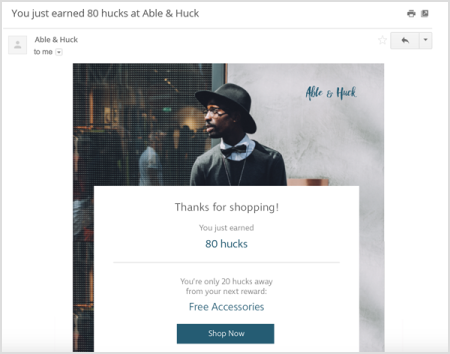
If the payment status matches your Marsello Order Rewarding settings, the customer earns points automatically. If the Earned Points Email notification is enabled, they’ll also receive an email with their earned points.