-1.svg)
Add a loyalty widget to your BigCommerce store
Allow customers to access your loyalty program by adding a loyalty widget to your BigCommerce store.
Applies to: BigCommerce
This guide is specific to the BigCommerce integration.
⚠️ Important: This widget is no longer supported. All Marsello accounts are being migrated to the new Customer Portal. Learn more about the new Customer Portal here.
Before you get started
Here are some key details to note before adding a loyalty widget to your BigCommerce store:
-
The loyalty widget is added to your store differently, depending on whether your store is using a Stencil theme or a Blueprint theme.
-
️️Stores using the Stencil theme will have the loyalty widget installed automatically when the Marsello app is installed.
-
Stores using the Blueprint theme will have to follow this guide to install the loyalty widget.

Find which BigCommerce theme platform your store uses
A quick way to tell what theme platform you currently have applied to your storefront is to go to the Storefront menu in the control panel.
Stencil
-
If the Storefront menu shows Footer Scripts as an option, you are using a Stencil Theme.
Blueprint
-
If the Storefront menu shows the Mobile Theme Settings, you are using a Blueprint theme.
📖 Learn more: You can find out more about the different theme platforms here
1. In your Marsello admin, go to Customer experience > Online > Online portal (Legacy)
2. Here you will find instructions on how to install the loyalty widget. Copy the unique 'script' provided - this will be added to your store footer to add the loyalty widget
3. In your BigCommerce admin, go to Storefront. Under My Themes, click Edit HTML/CSS
4. The template file editor will open in your homepage template file, default.html
5. Paste your unique loyalty widget script just above the section of your template.
Find your loyalty widget script
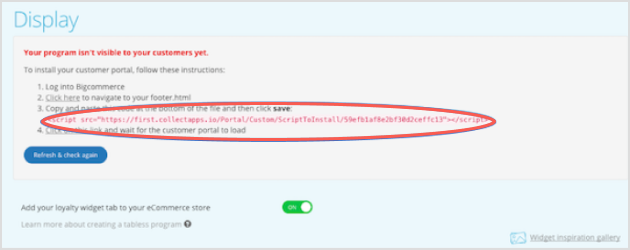

Add your loyalty widget script to your store footer
Blueprint themes
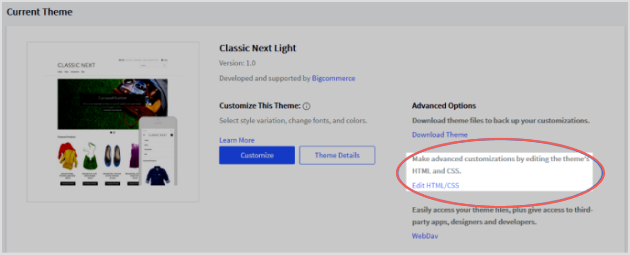
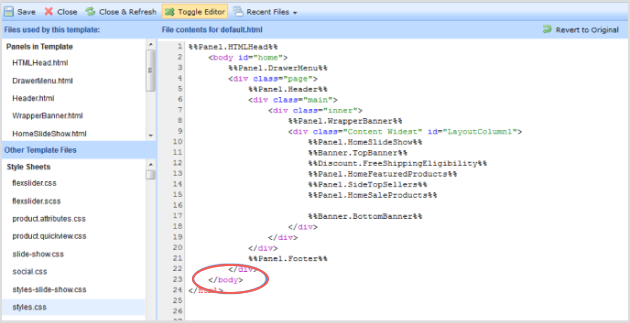
6. Click Save to apply this script to your live store.
Your loyalty widget should now be live on your BigCommerce store 🎉
Brands also searched for: bigcomm, bicommerce, bigco, bigcreward, bgic